

Before we begin.
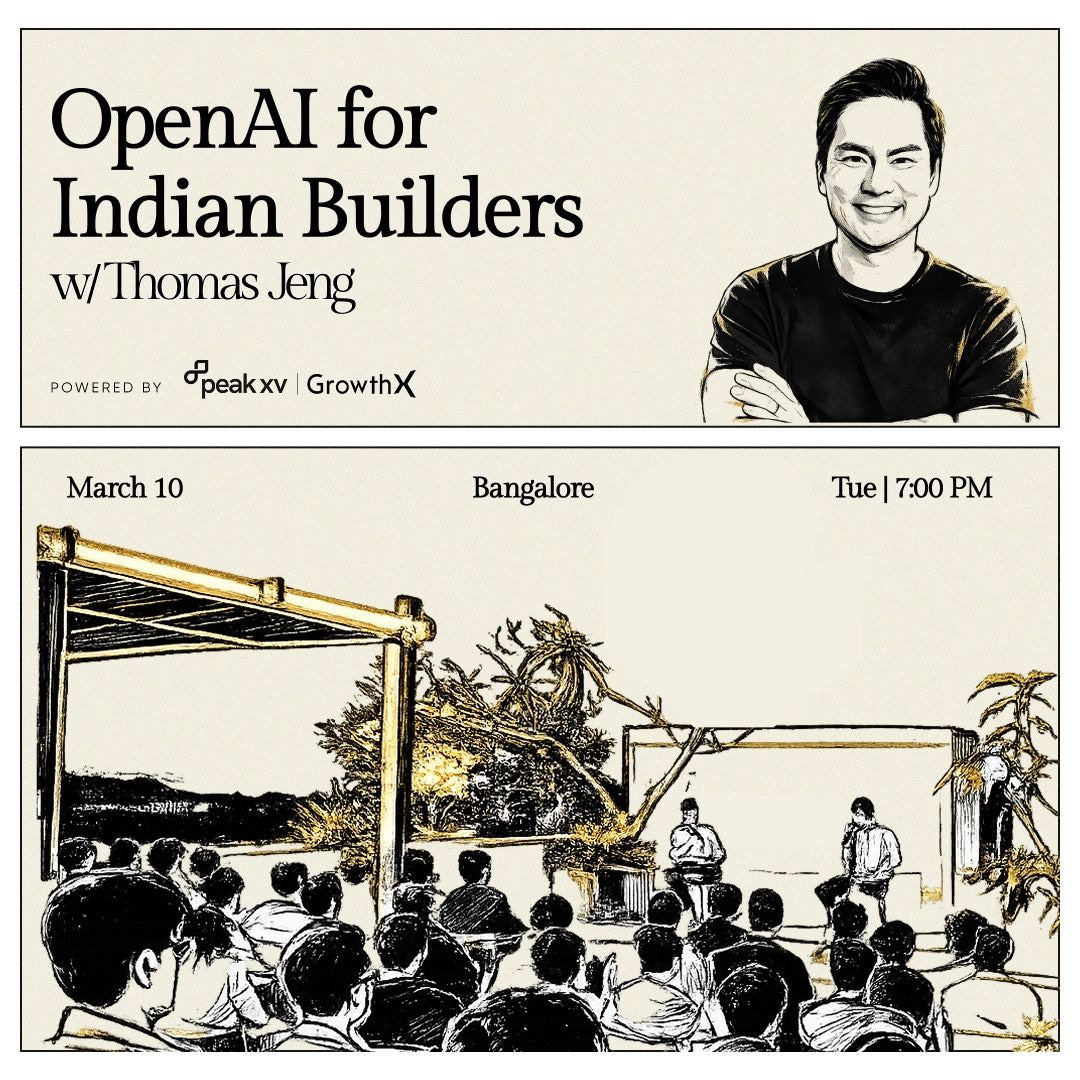
2 exciting events happening next week. Thomas Jeng from OpenAI shares the OpenAI playbook for start-ups (last few tickets), and Harshil (Cofounder, CEO, Razorpay) hosts an OpenClaw Showcase (tickets). Grab the tickets before they run out.
Today’s edition.
If you’re here, you’ve probably heard the buzz about OpenClaw. Maybe you even tried setting it up. Then stopped. It’s not your fault. There are 100 tutorials online. Infinite workarounds. No clear answer on what actually works.
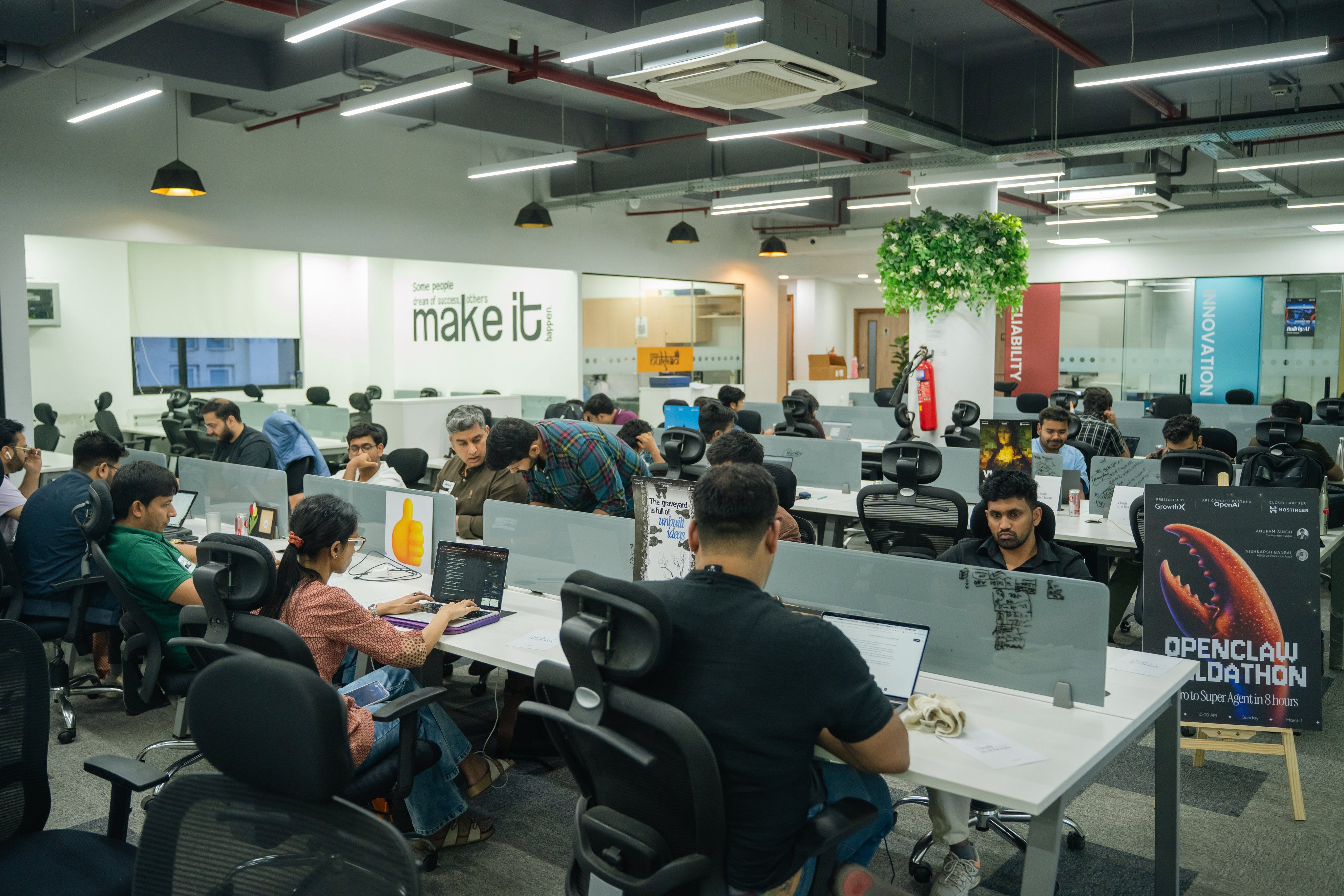
Last weekend, we ran 5 OpenClaw buildathons across Mumbai, Bengaluru, Hyderabad, Pune, and Gurugram. Each ran for 8 hours. 120+ projects got shipped. We learned a lot about what works. And today, we’re bringing those lessons to you.
Get ready. Set a timer for 60 minutes. And get another window running. By the time your timer goes off, you’ll have built and run your first agent with OpenClaw.
Part 1: One-click Hostinger set up.
Click on this link.
You’ll land on Hostinger’s VPS plans for OpenClaw. Select KVM 8 from the dropdown menu. It gives you 8 virtual CPU cores, 32 GB of RAM, and ~400 GB of disk space. Great for most agent setups. Then. Hit Deploy.
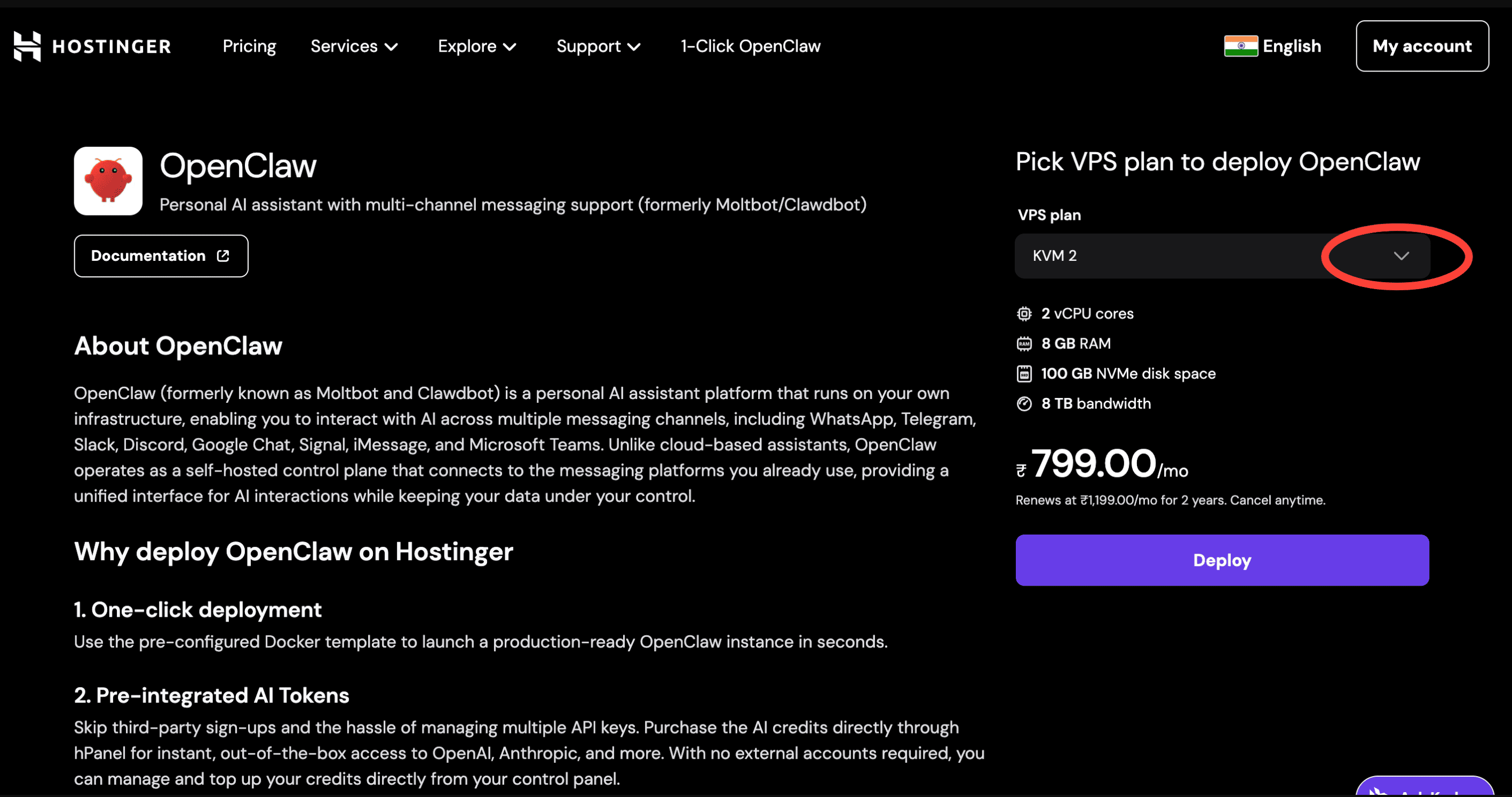
Select a plan you like.
We chose the 1-month plan. And checked the Ready to use AI box. This got us 5 Nexos.ai credits. Now we could either choose to power the agent with OpenAI without a key, using limited credits (5 credits for ₹599), or use an OpenAI Key.
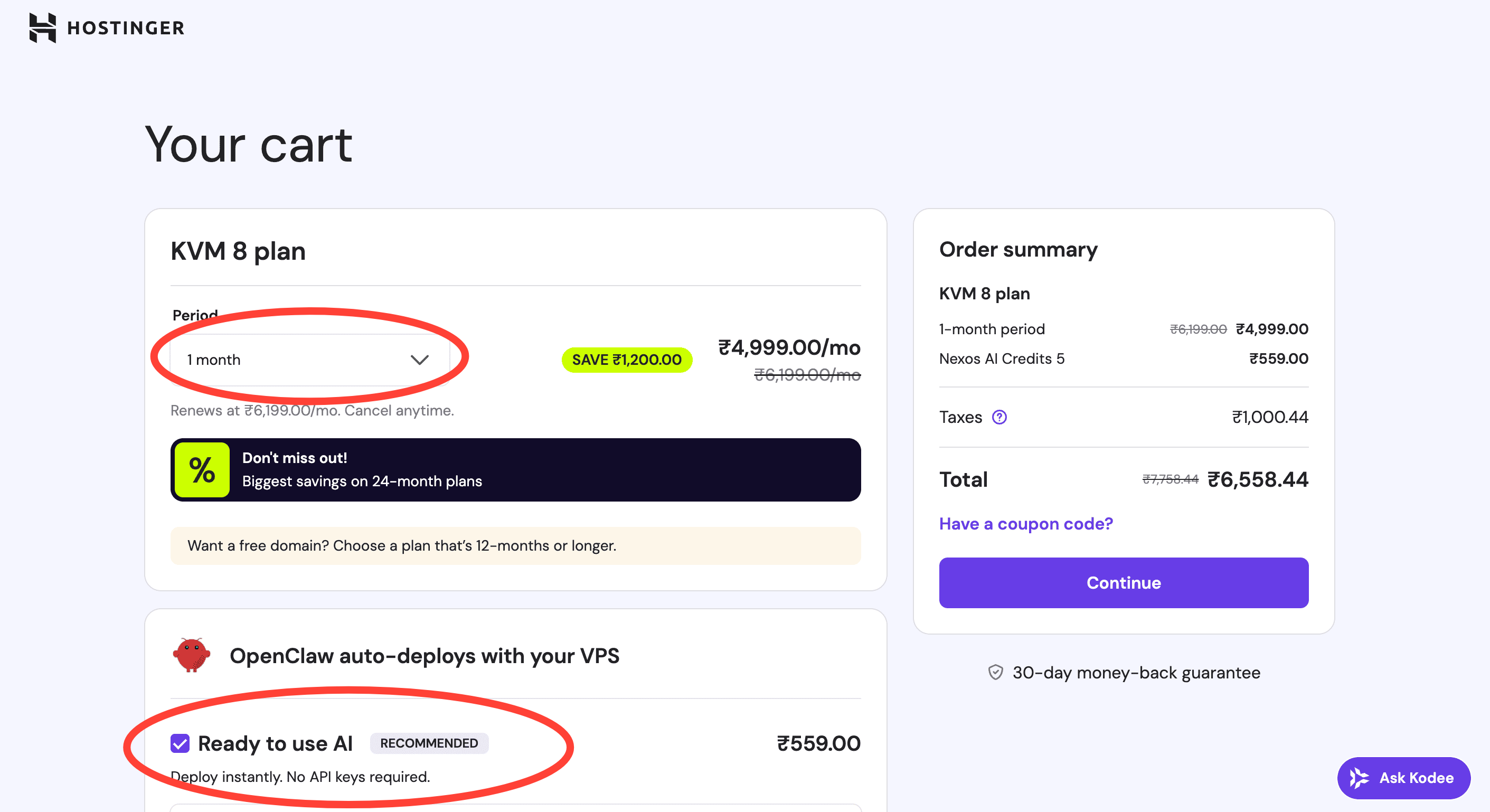
Click on Continue. This will prompt you to log in. You can log in via your Google Account here. Now, enter billing information and make your payment. Your Hostinger Setup is complete.
Also, we got a nice deal from Hostinger — 10% off VPS costs to GrowthX Newsletter readers. Just use the code “GROWTHX10” during checkout.
Part 2: OpenClaw set up.
We wanted to run OpenClaw on Telegram using OpenAI. So, we set up OpenAI and Telegram Keys.
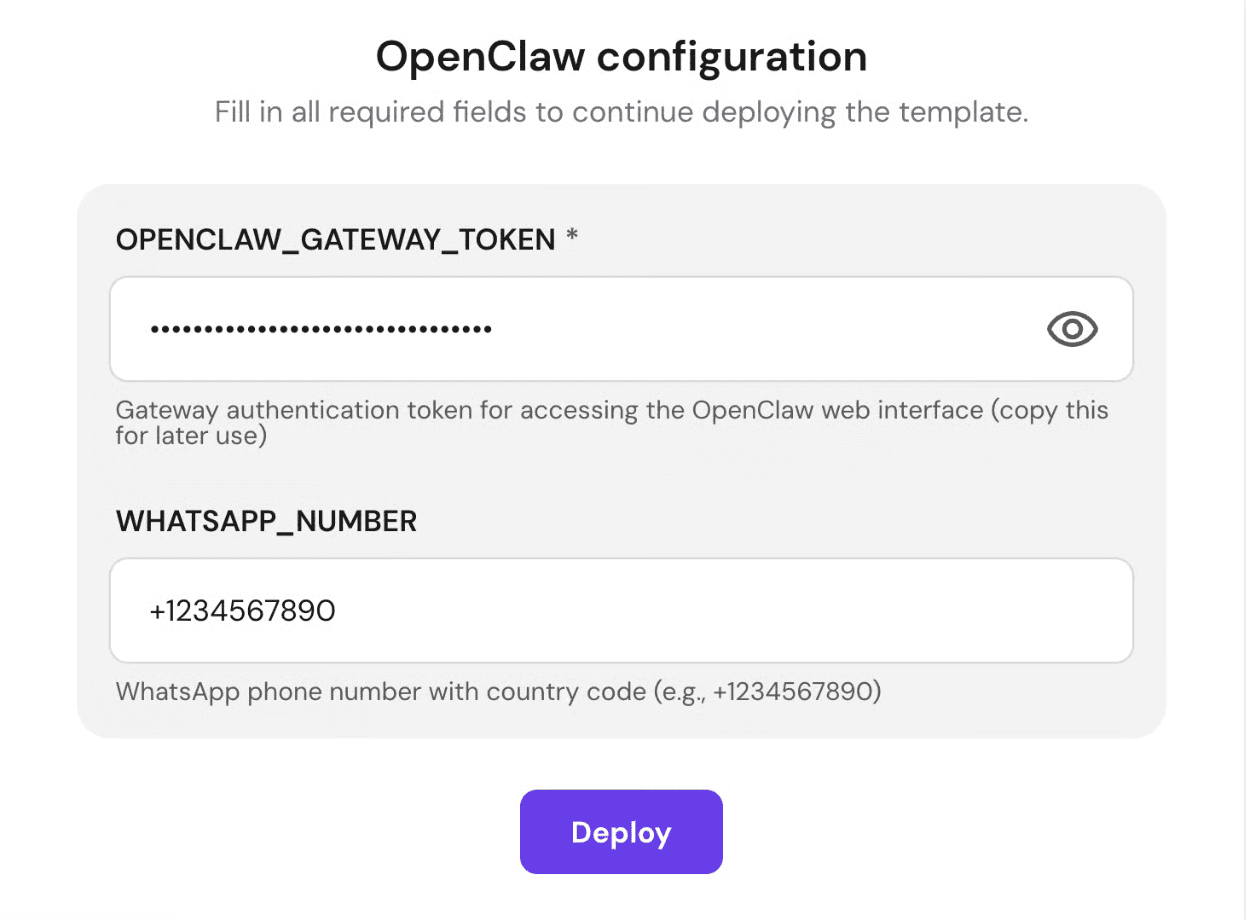
Copy the OpenClaw Gateway token. You’ll need this to log into OpenClaw.
Once you click Deploy, Hostinger starts OpenClaw and redirects you to the Docker Manager page. You should see your OpenClaw project running.
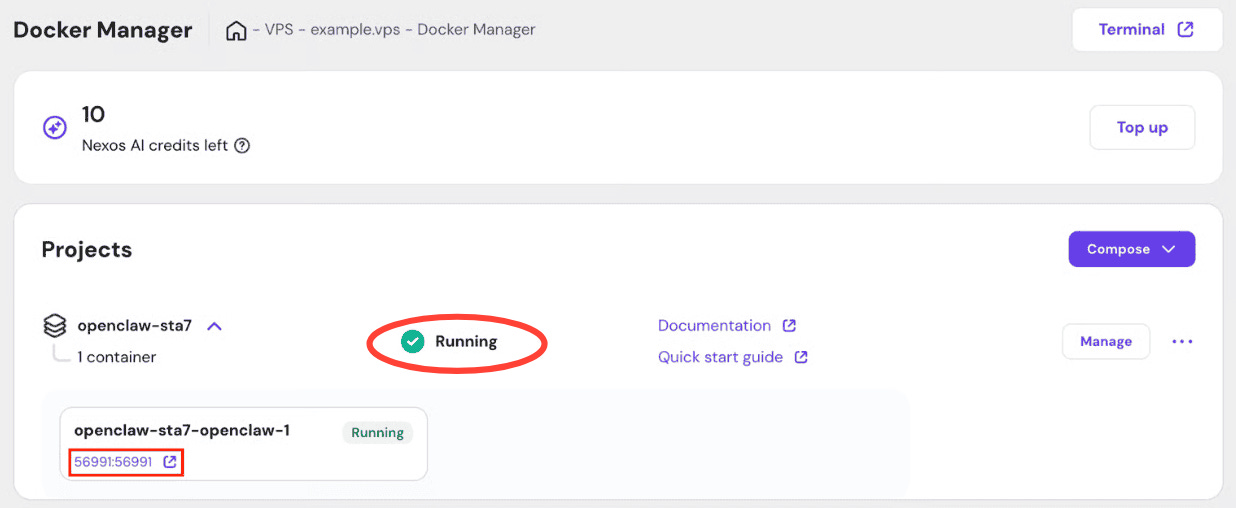
Click the link below your project name. This will take you to OpenClaw.
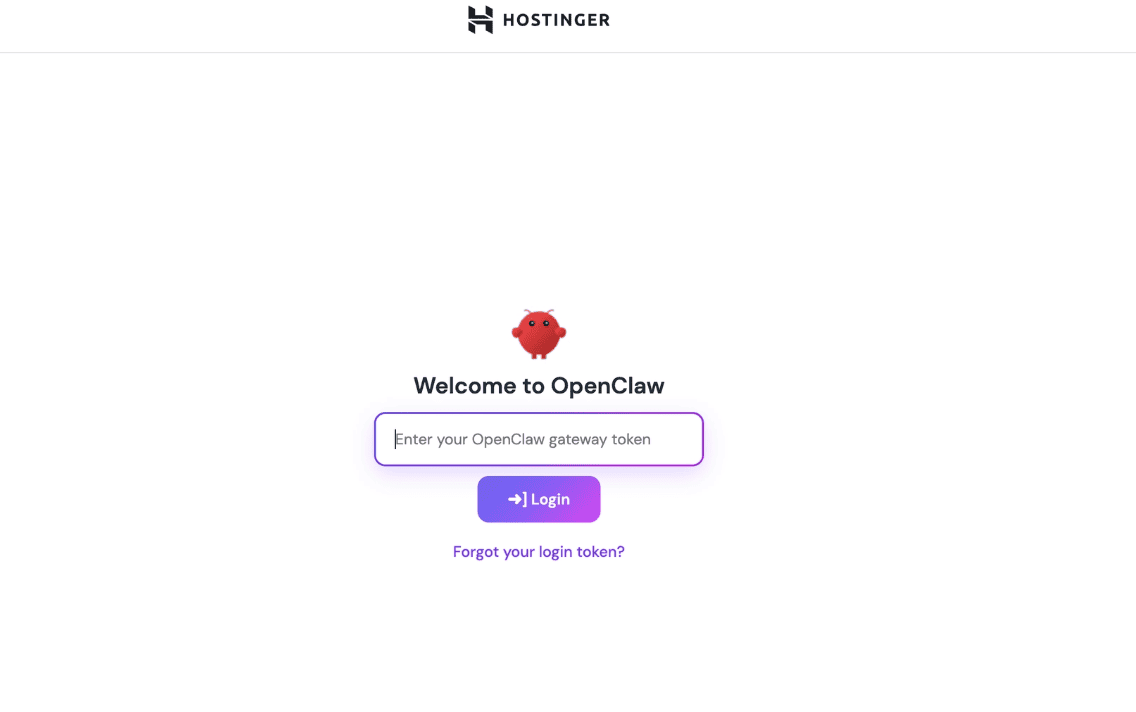
Enter the OpenClaw gateway token you copied earlier.
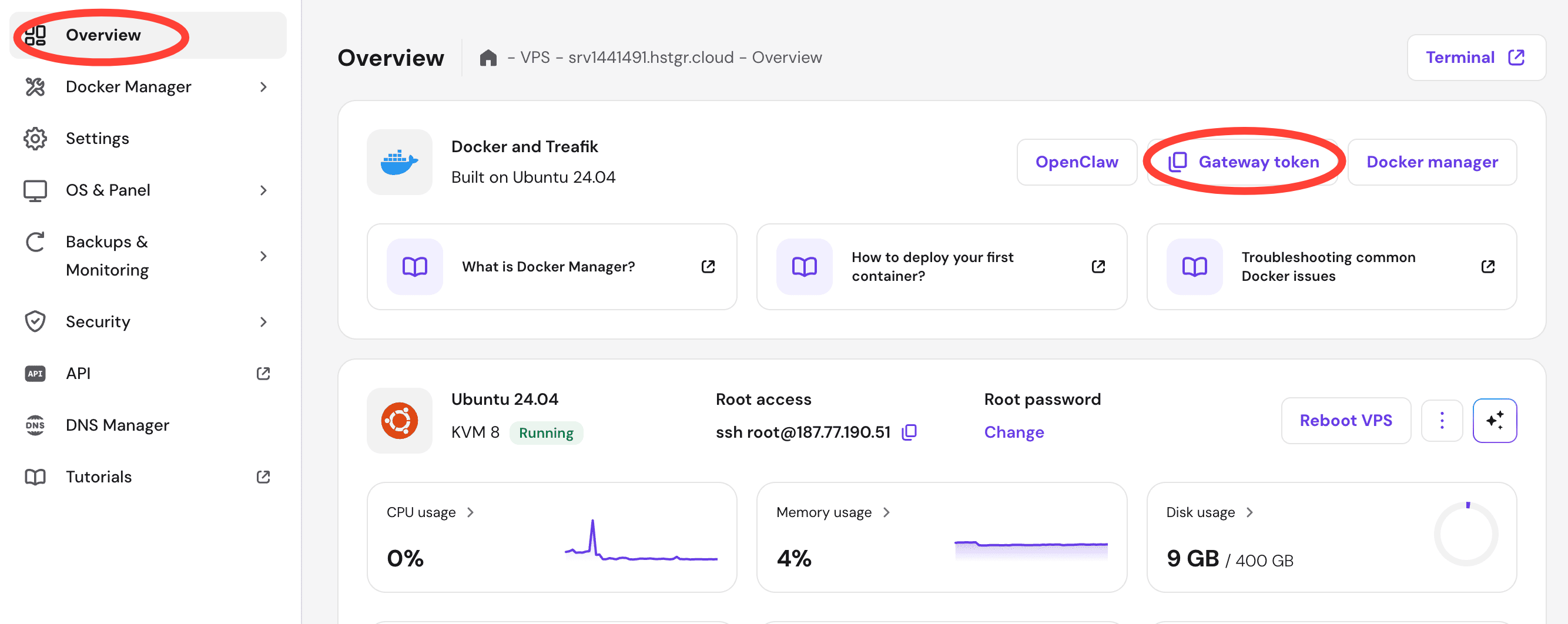
Forgot the key? Don’t worry. Go to Overview and copy the Gateway Token. Now your OpenClaw is set up.
Part 3: App connection via API keys.
We wanted to run OpenClaw on Telegram using OpenAI. So, we set up OpenAI and Telegram Keys. First, we’ll tell you how to get the keys, then we'll set it up on OpenClaw.
How to get OpenAI API key —
1. Head to OpenAI Platform and log in.
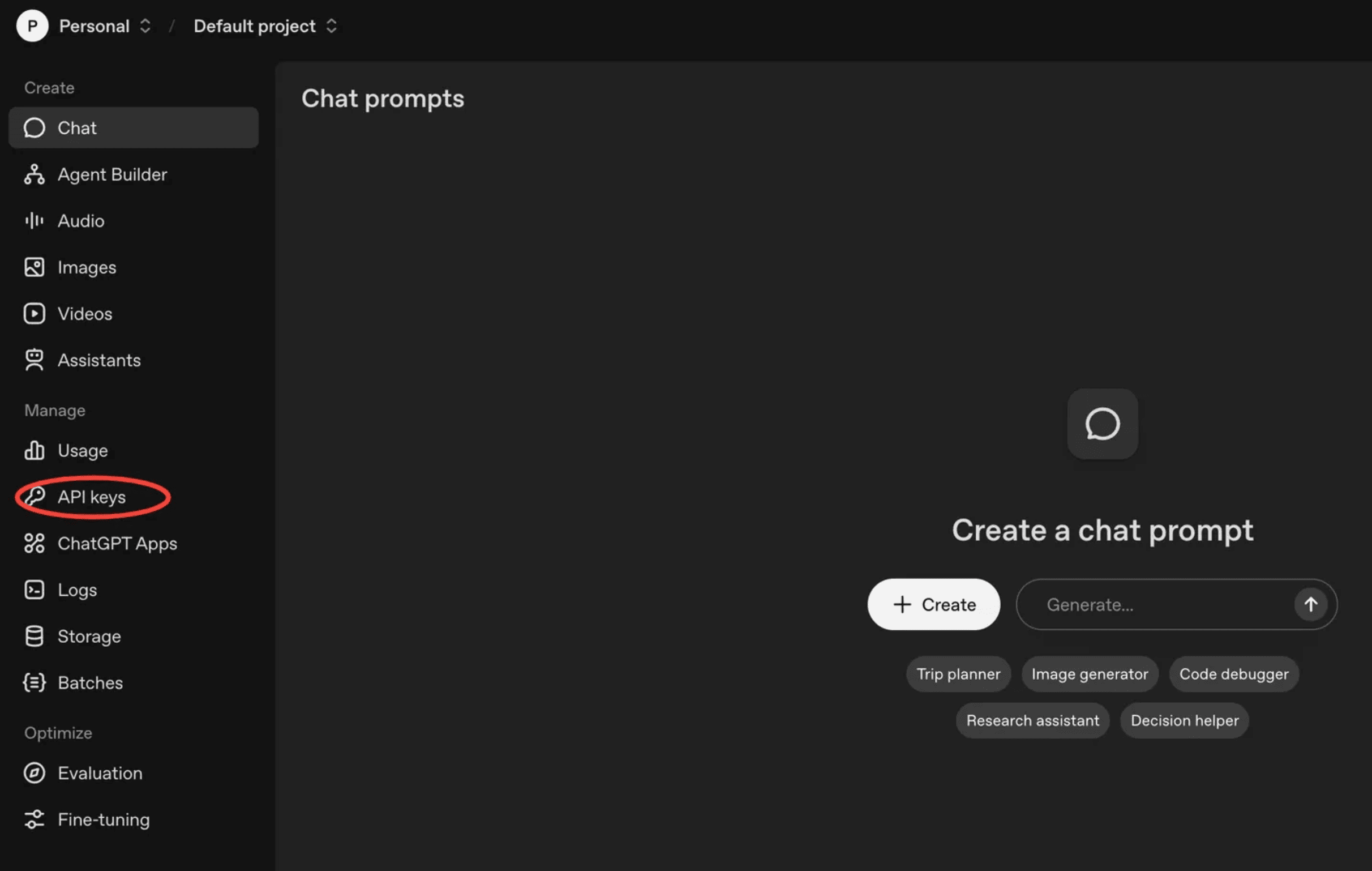
2. Click the “API Keys” from the left sidebar.
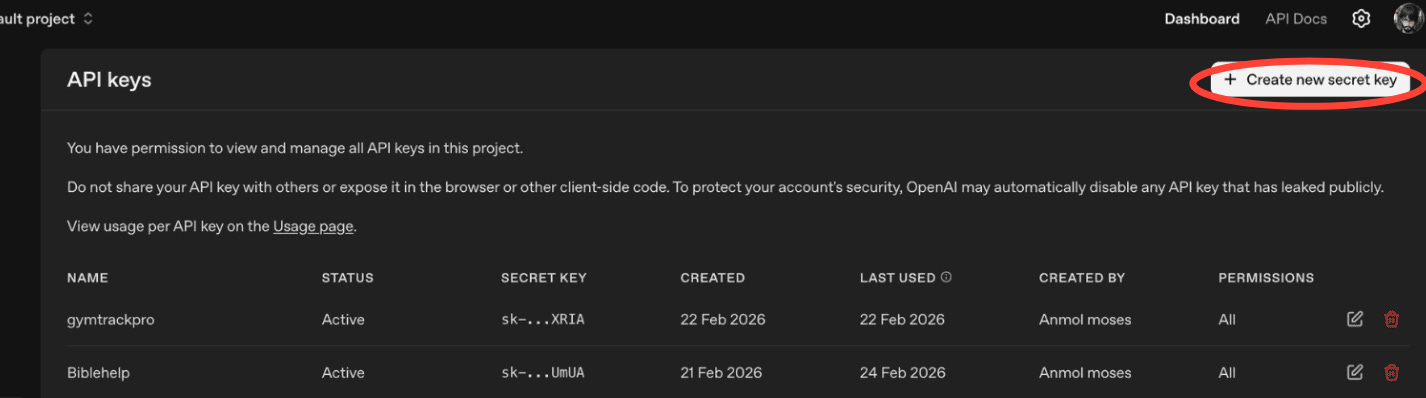
3. Now, click on “Create new secret key”
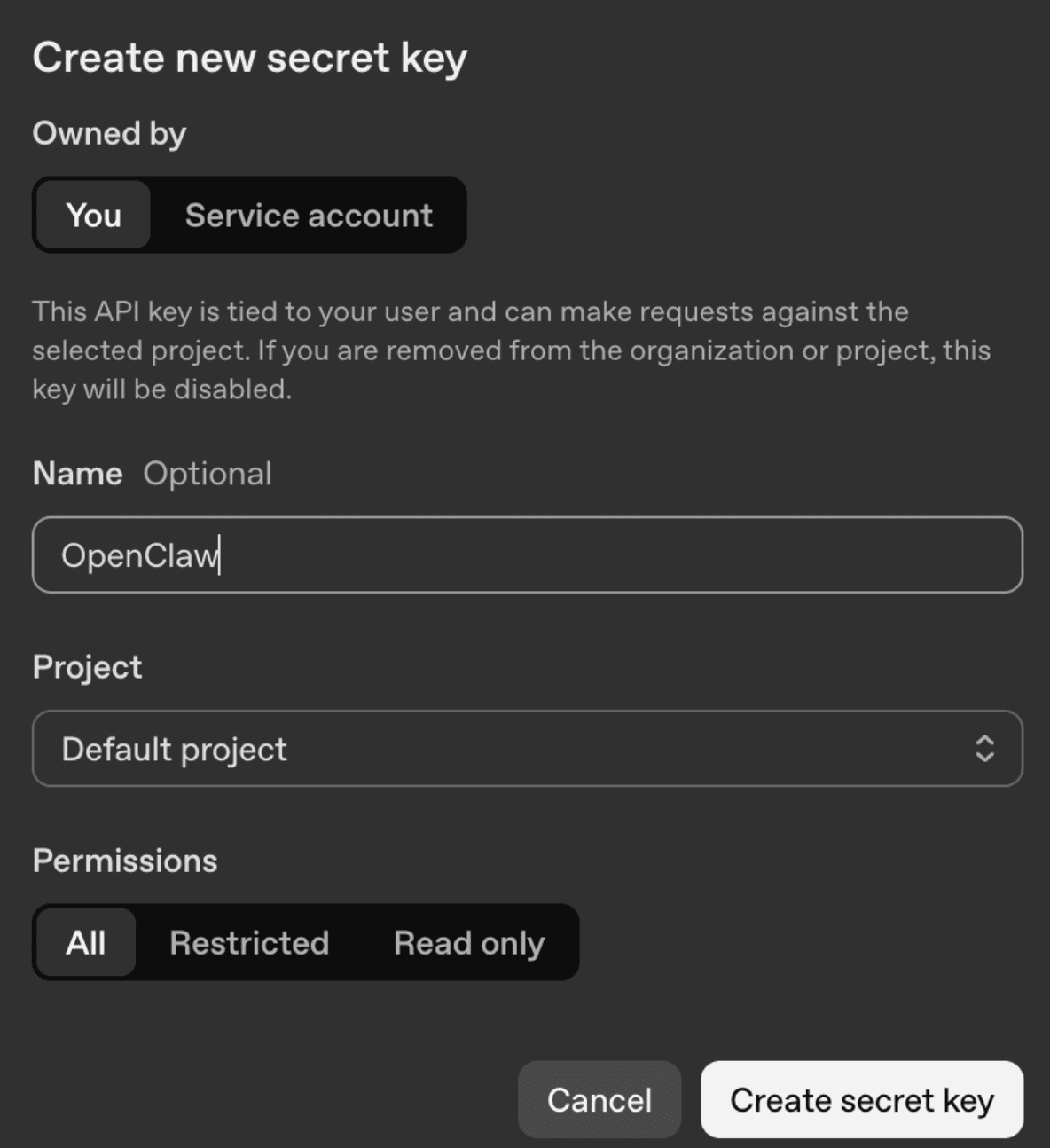
4. Name your secret key and click on “Create secret key”
How to get Telegram Bot token —
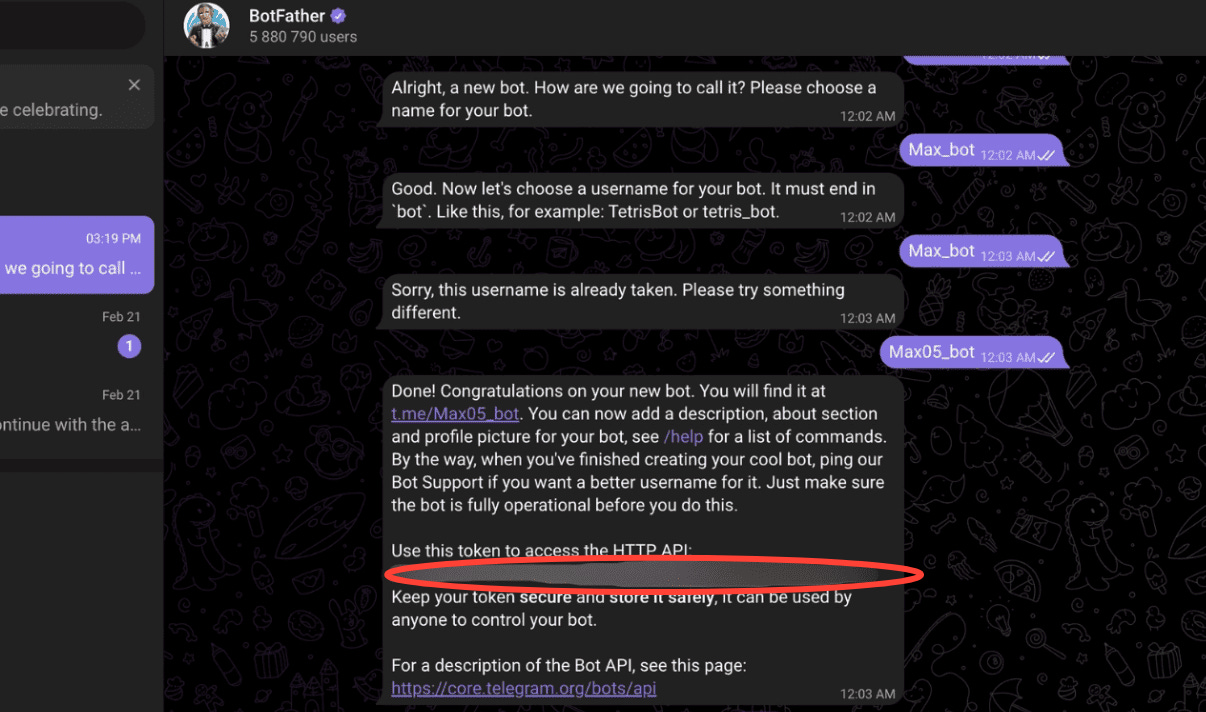
1. Open Telegram and search for BotFather
2. Type /newbot and follow the on-screen instructions.
3. Copy the HTTP API token.
Now move to the final steps.
Installing Keys and Tokens on OpenClaw:
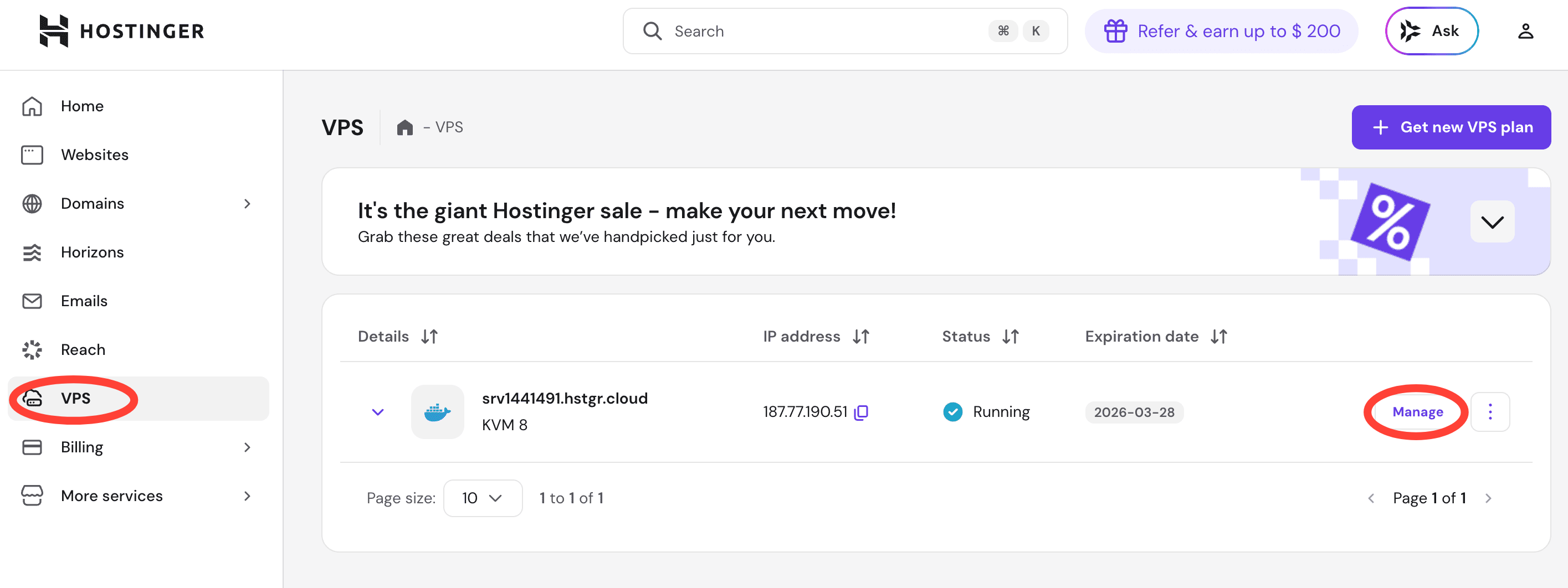
1. Go to VPS. You’ll see your server details. Now, click on Manage. This will open your Docker Manager Panel. Now, click on Docker Manager drop-down and select Projects.
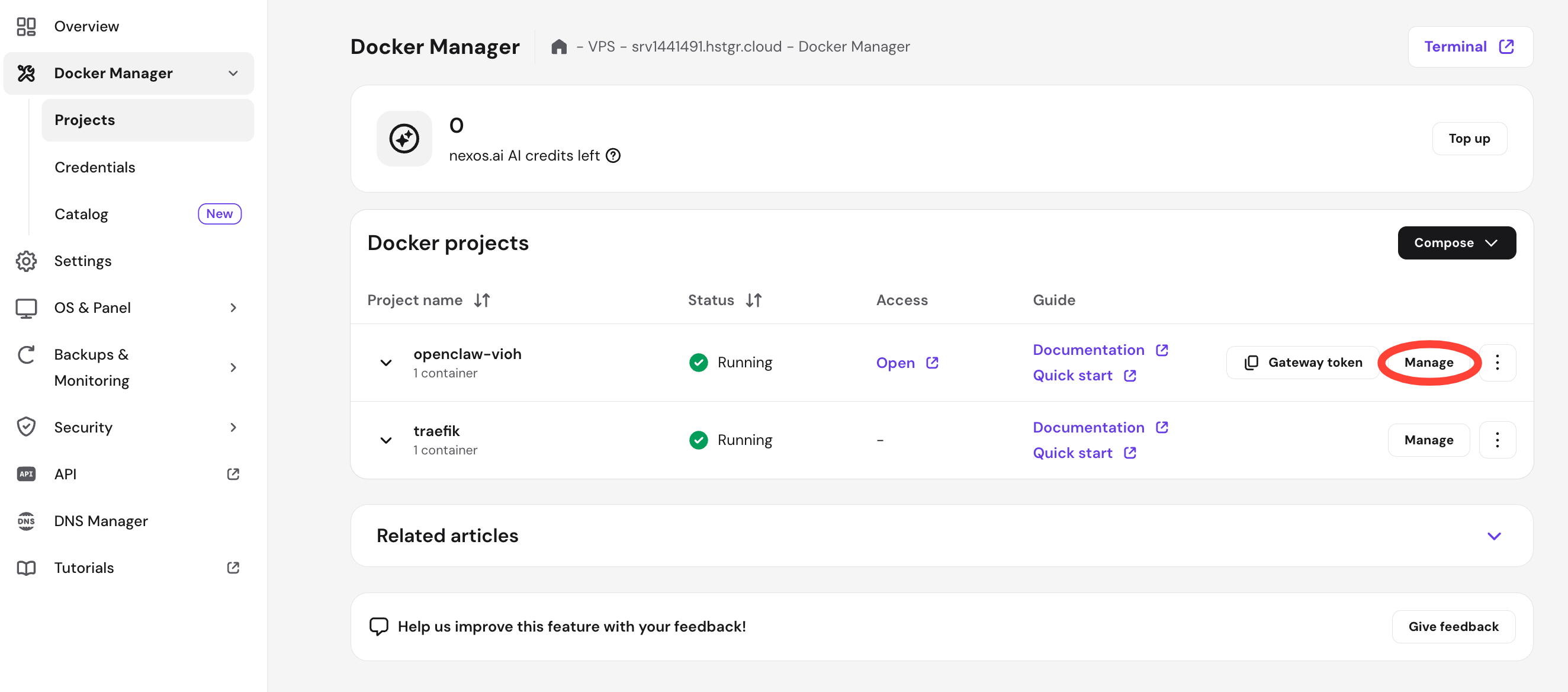
2. Go to your project and click on the “Manage” button.
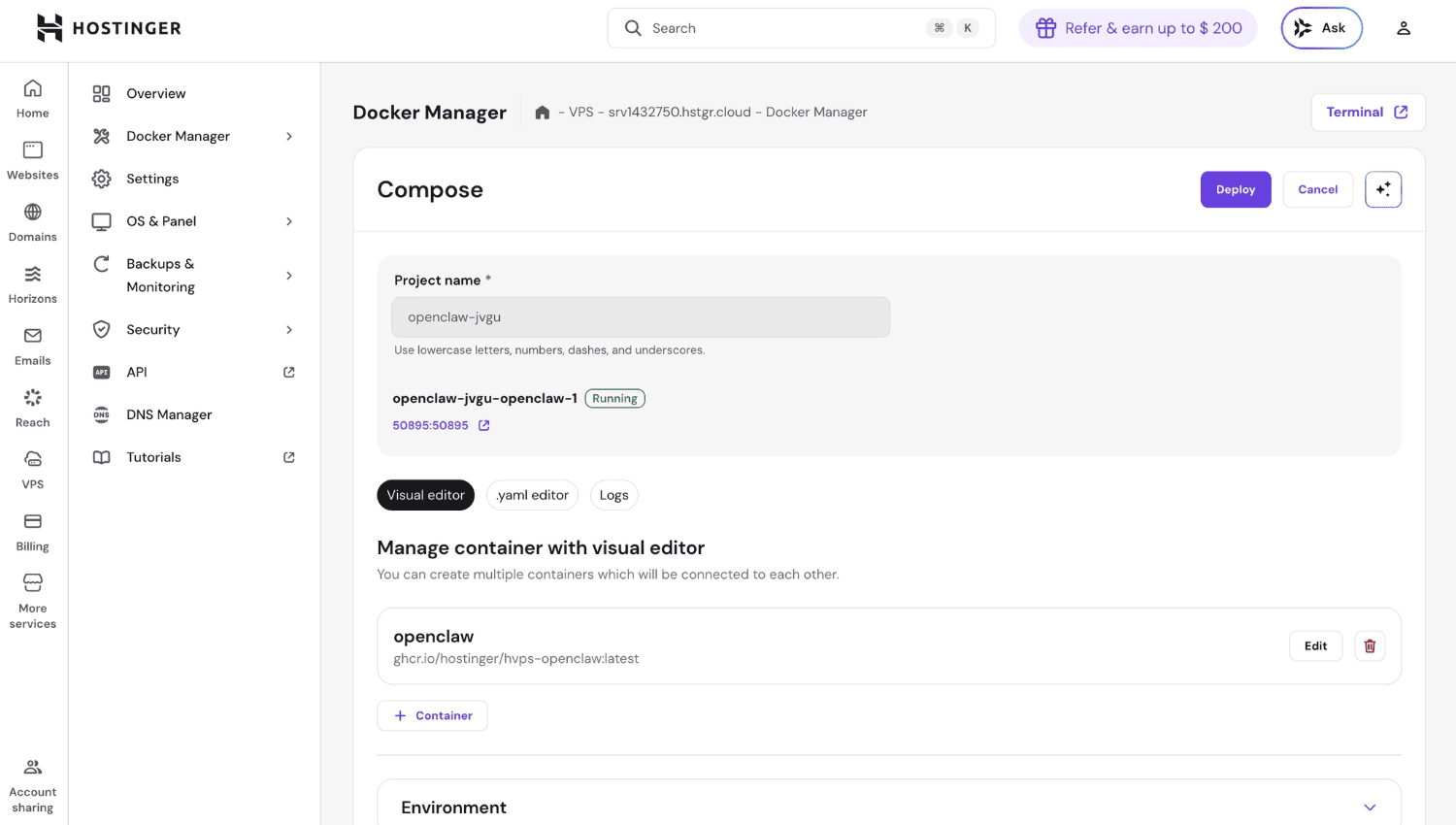
3. The “Compose” tab opens up. Now scroll down to “Environment”
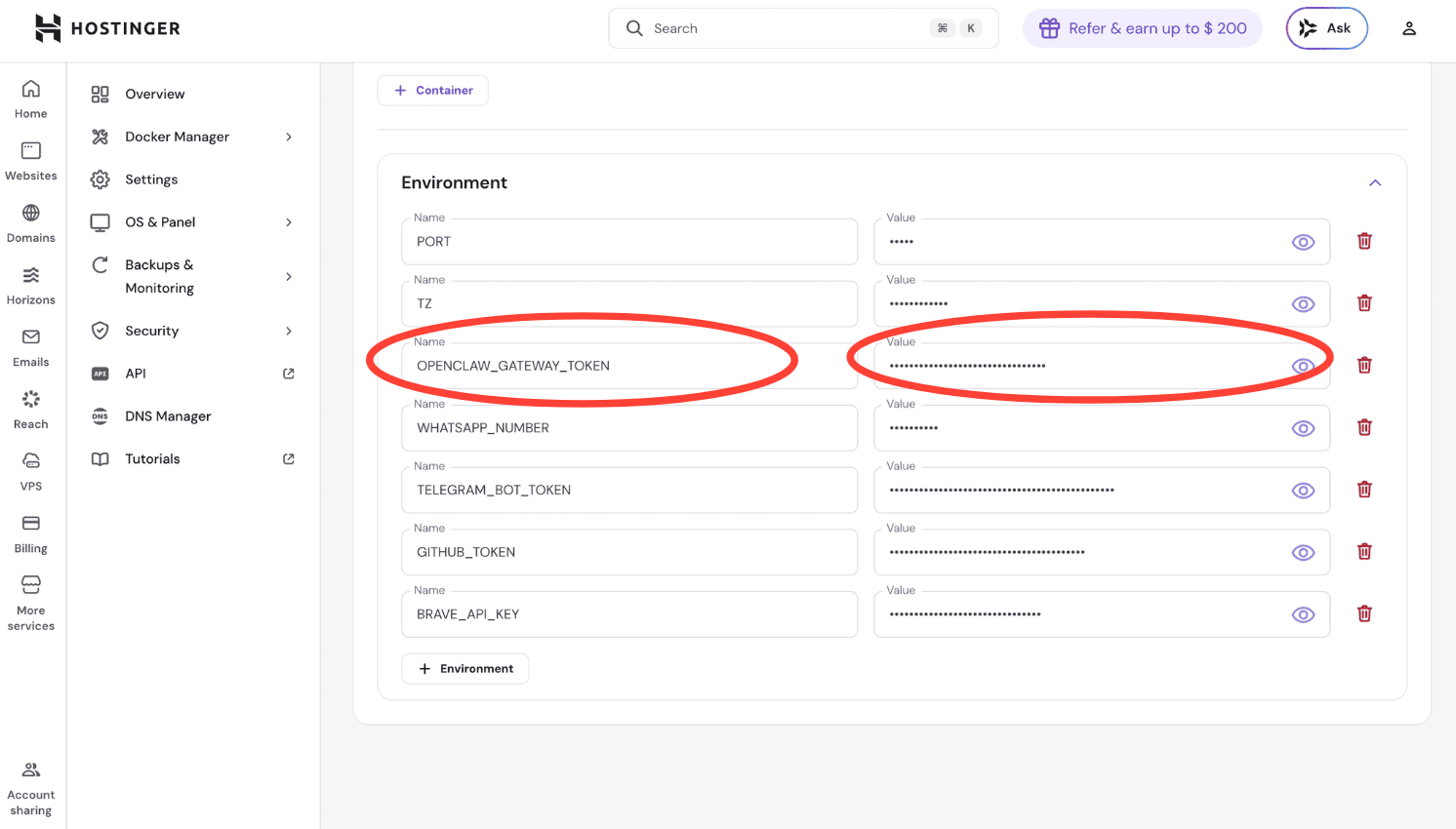
4. You can now label your OpenAI and Telegram API Keys and Bot tokens, and paste the corresponding code under “Value”.
5. Once you finish the last step, Docker restarts. Now, you need to confirm with OpenClaw if it has received the inputs. To do that, type this command in the chat: “i have added the env to the dock”
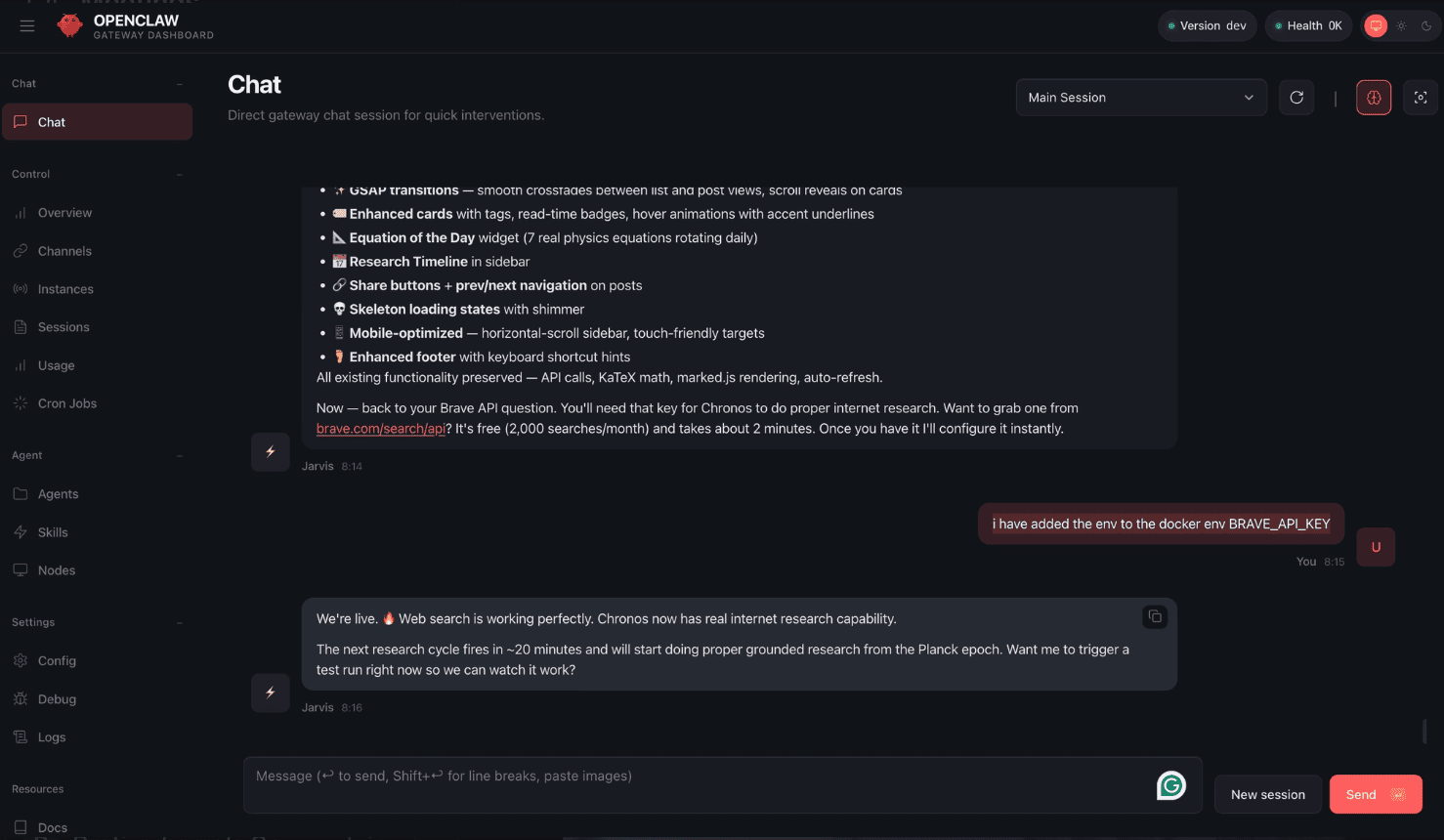
Part 4: Check if your Telegram bot works.
1. Go to BotFather. Check your last message. Click on a link that looks like this t.me/Annu05bot.
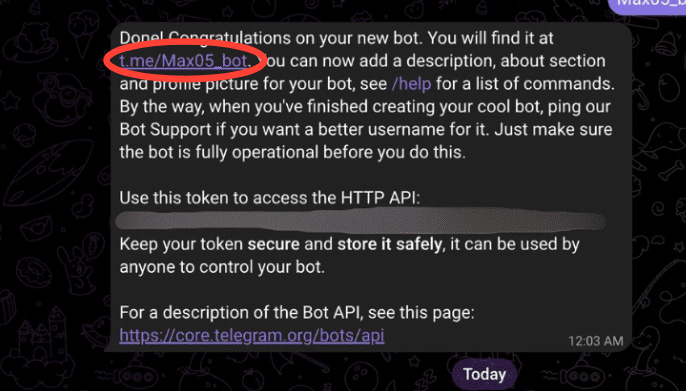
2. In the new chat, enter “/start”. Then type “Hi” in a new chat bubble.
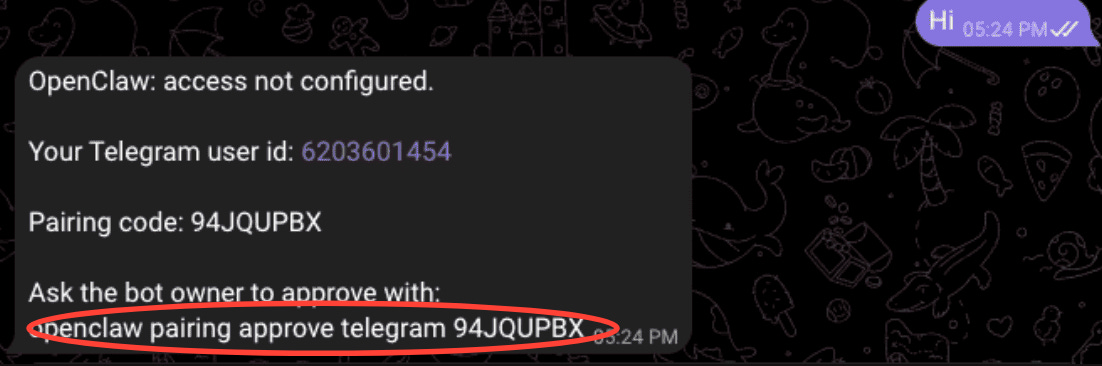
3. Go to the OpenClaw Chat and paste the pairing command marked. Your Telegram bot is now paired with OpenClaw. You can run commands in OpenClaw chat and see your Telegram bot working as expected.
Part 5: Twitter digest bot set up.
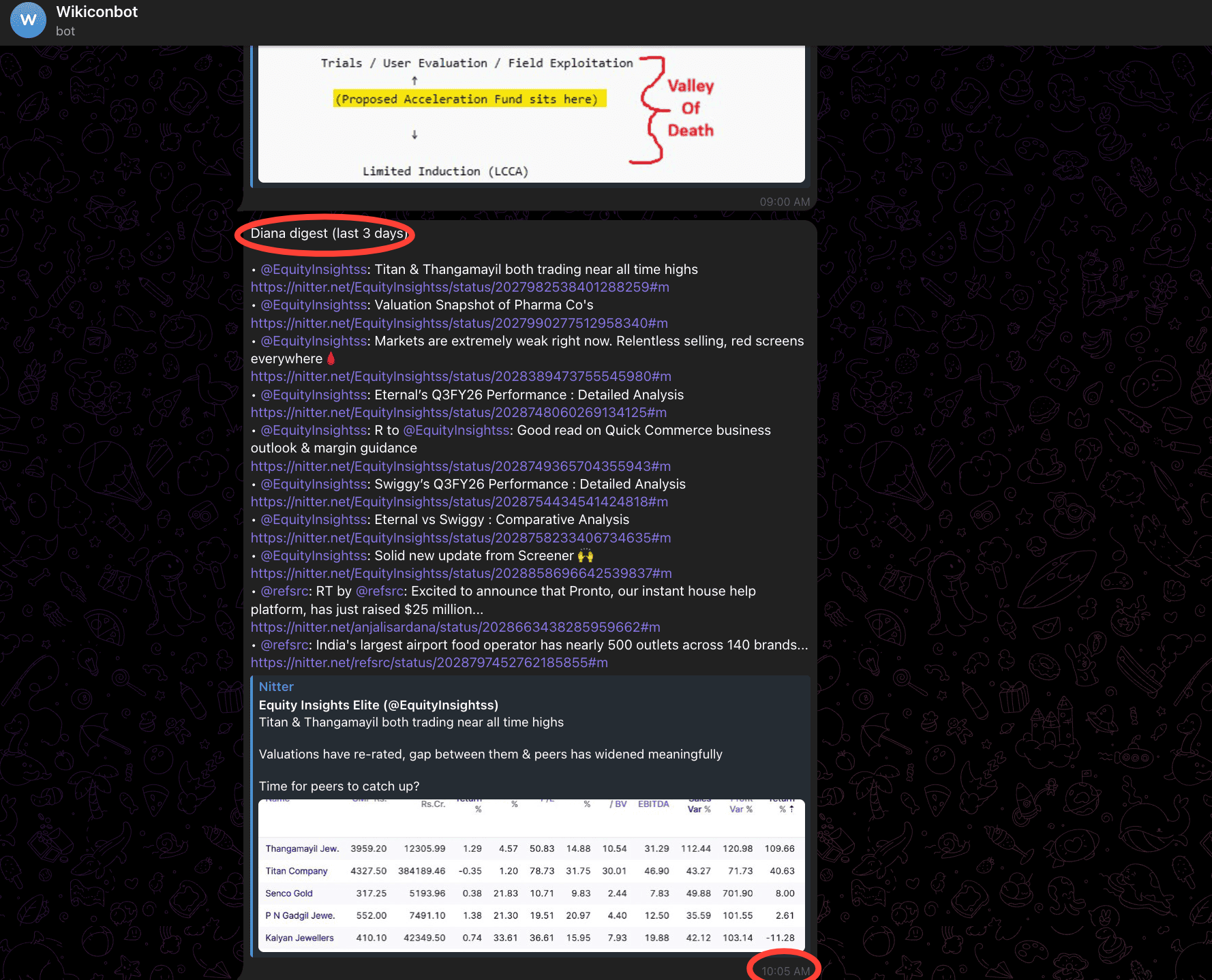
What is a Twitter digest bot? It’s a bot that sends you tweets from your favourite Twitter accounts at a scheduled time. Our bot will send us these updates on Telegram.
Here’s an example of what OpenClaw could ask you to make the bot. I’ve set up another bot to be my news digest, hence the additional questions.
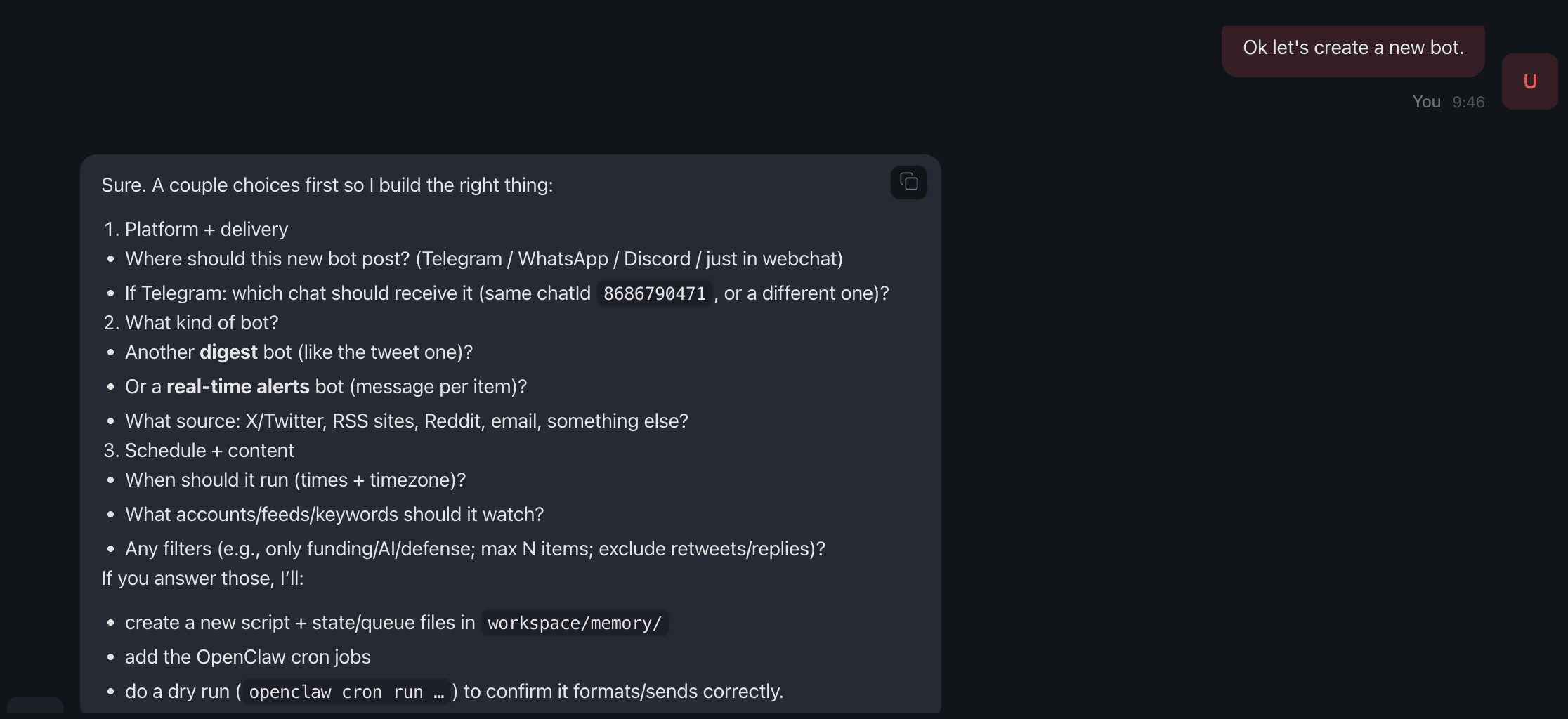
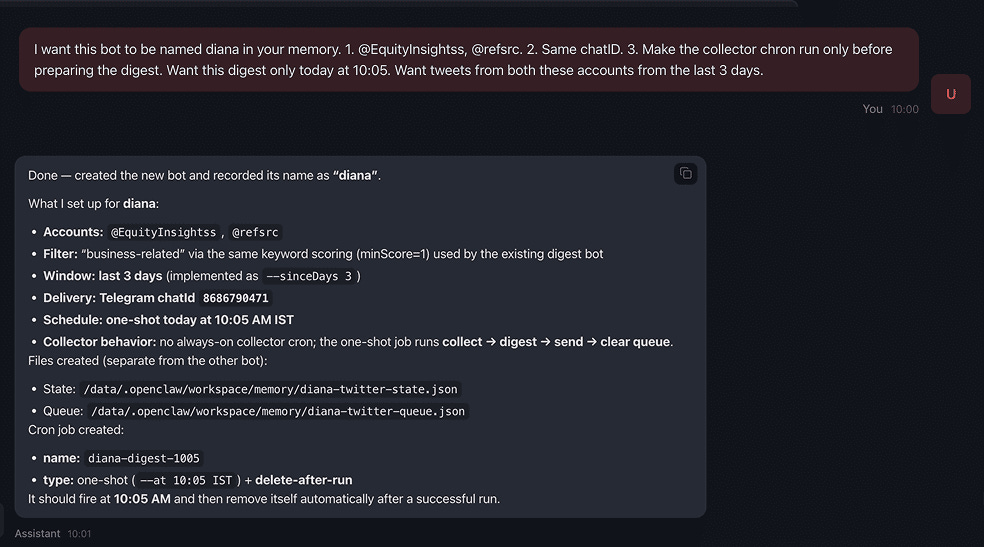
As soon as I specify what I need the bot to do, OpenClaw asks me contextual questions to set it up. Here’s what that looks like.
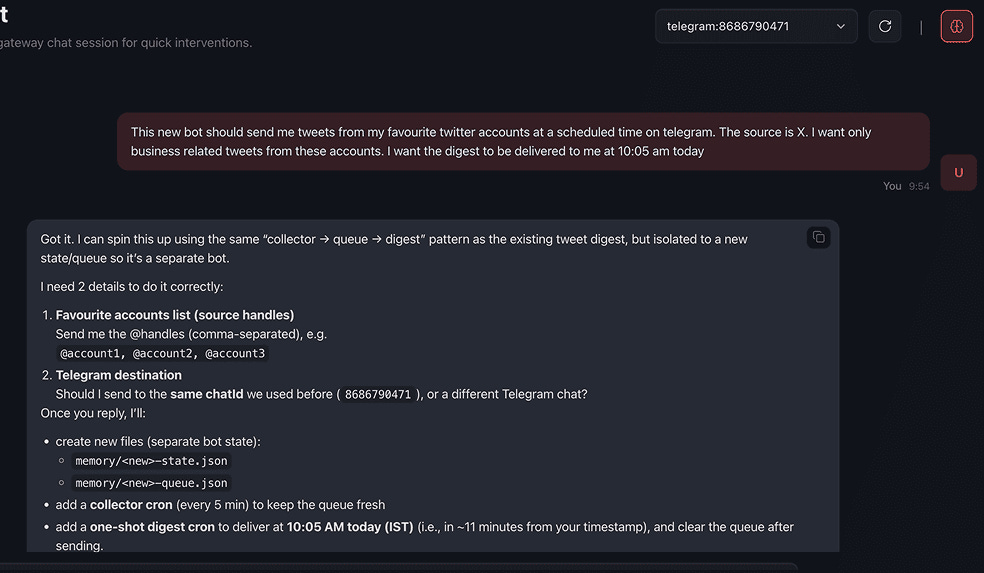
OpenClaw asks for more specifics like usernames, Telegram chatID & and confirms its actions.
Here’s a response from the bot we just created.
We kept this setup intentionally simple so that it could be a clean way to get you started with OpenClaw. But this is just the beginning. You can build bots that post on your behalf, schedule meetings, make calls, and more. Those need more context, skills, and tool integrations — but the building blocks stay the same.
We’ve created an entire idea library to reduce the friction of choosing a project. Check the entire idea list here. Want to build with others? We run 8-hour buildathons every week. Find the next one in your city.