

Build a mini-AI app in 10 mins 👀
A beginner-friendly workflow to build an app using Opal.

Before we begin.
5 years ago, career growth was linear. You had to do the grunt work, develop real skills, and hope to get promoted in a few years. That’s not true anymore.
AI has compressed the career growth timeline by doing the grunt work for you. The question is, will you delegate the work effectively to AI?
The smartest people in your circles aren’t taking the AI wave lightly. They’re joining the GrowthX Club to learn AI deeply and surround themselves with people who get it. Some familiar names:
Ramneek Khurana — Co-Founder & Head of Product at Lenskart.
Mayur — AVP Product at Sharekhan.
Murali — Brand Manager at P&G for Vicks and Ariel.

Today’s edition.
A few days ago, we shared a step-by-step process for building a web app on Lovable. Then we learned that Google had a free tool, Opal, that did the same thing for mini-apps.
Over the last 3 days, we put Opal through a stress test to answer one question: Could you really create an app from scratch entirely through vibe coding using a free tool? Quick answer: You can. Here’s a workflow to prove it.
First, what can Opal do?
Google markets Opal as a visual vibe coding tool that lets you build AI mini-apps using natural language. So, in theory, you should be able to enter prompts on Opal and let the tool build a mini-app out for you.
Wait, mini-apps? Are they different from regular apps?
Think of it as a lightweight, simple web application that runs on virtually any device. The keyword here is simple. Opal isn’t built to create full-featured products. You won’t be building a workout app that tracks your reps, maintains streaks, and manages a personalised exercise library. What you can build is a form-checker app that takes an exercise name and returns the correct technique from the web. You get the drift.
What are we building today?
A simple diet chart for folks who want to eat healthier Indian food. Ready? Open a new tab now. Let’s get building.
Part 1: The set-up
1. Click on this link. It’ll take you to Opal. Here’s what you should see.
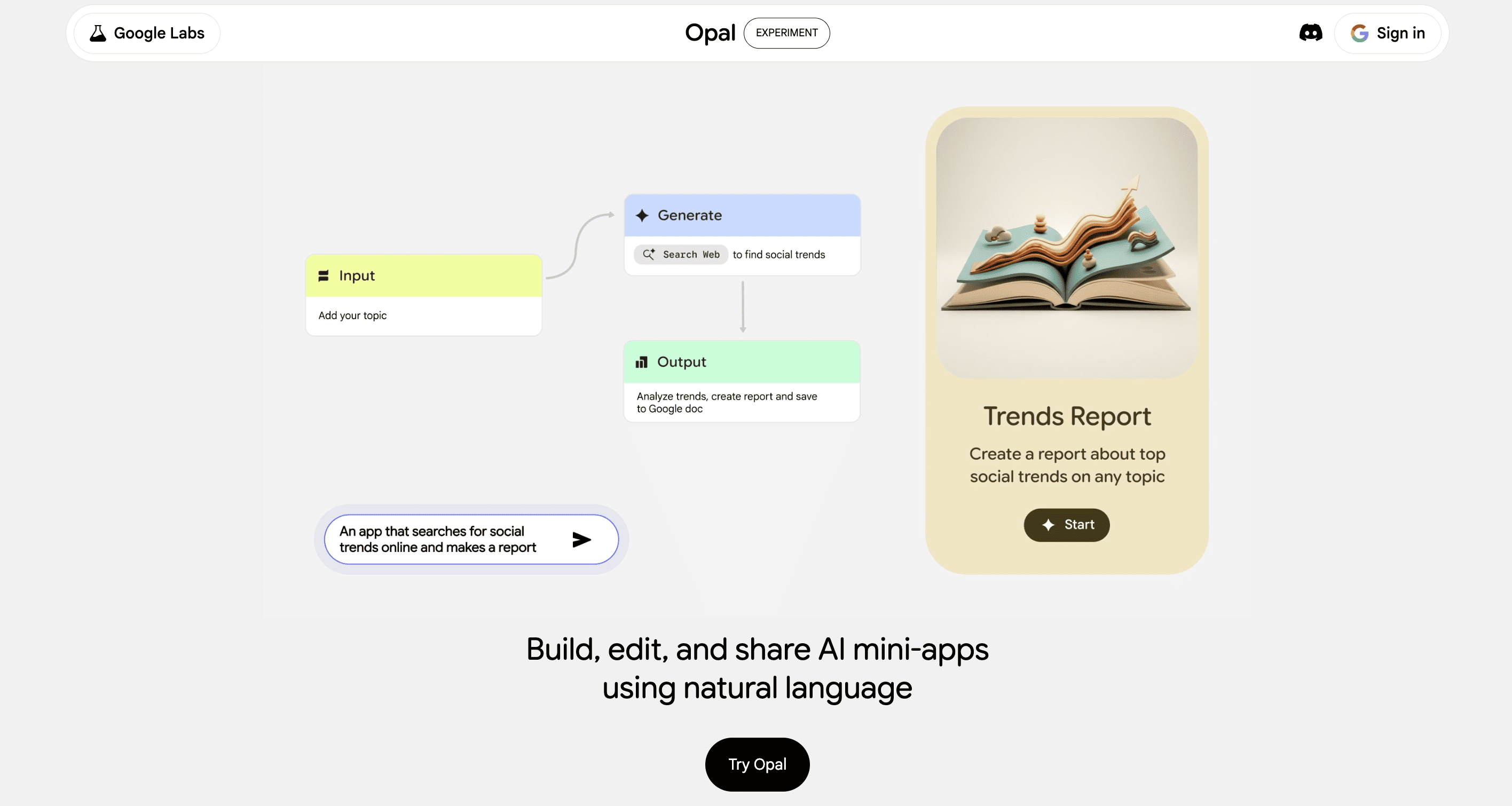
2. Click on Sign In and log in via your Google account.
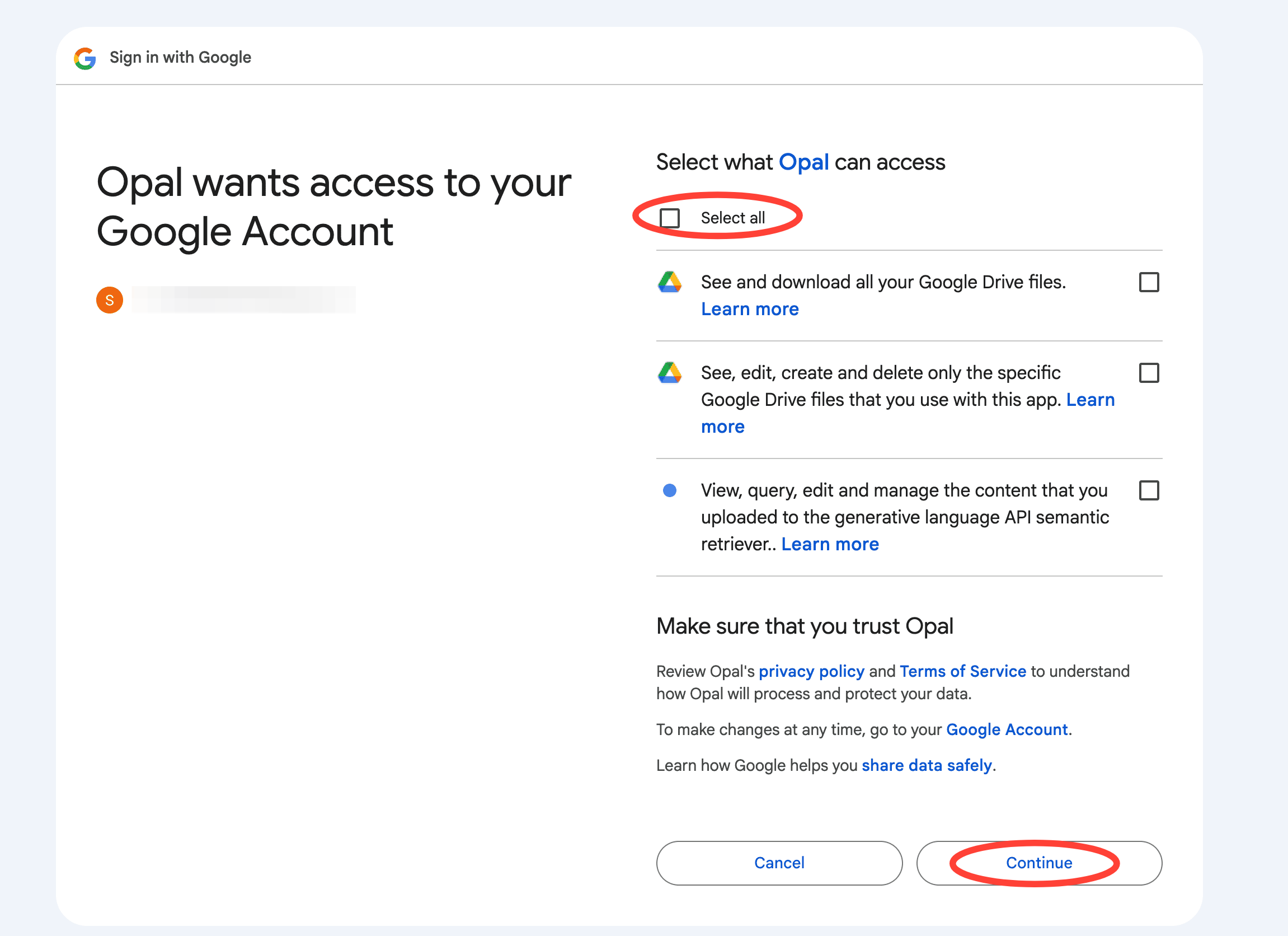
3. Next, Google will ask you for permissions to your Google Drive and access to see, edit, and change your files. Read the terms, click on Select all and click on Continue.
You should now see the Welcome page. Select your preferences and click Confirm.
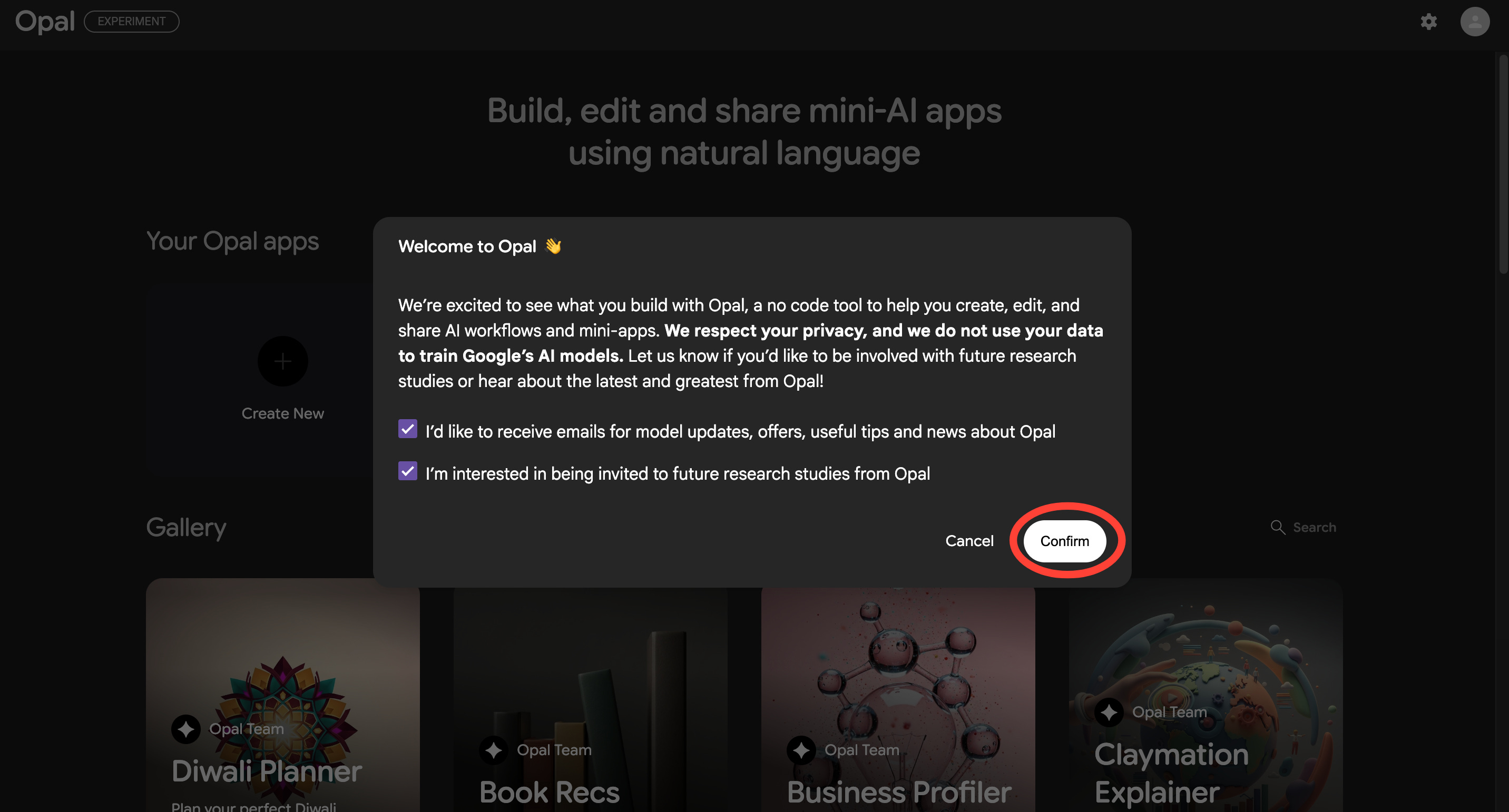
You’re all set to build your first mini-AI app.
Part 2: Building the mini-App
1. Enter your app idea into the chat box. Here’s what we’re using for the Indian Diet Chart app.
Act as a dietician and create a personalized Indian diet chart
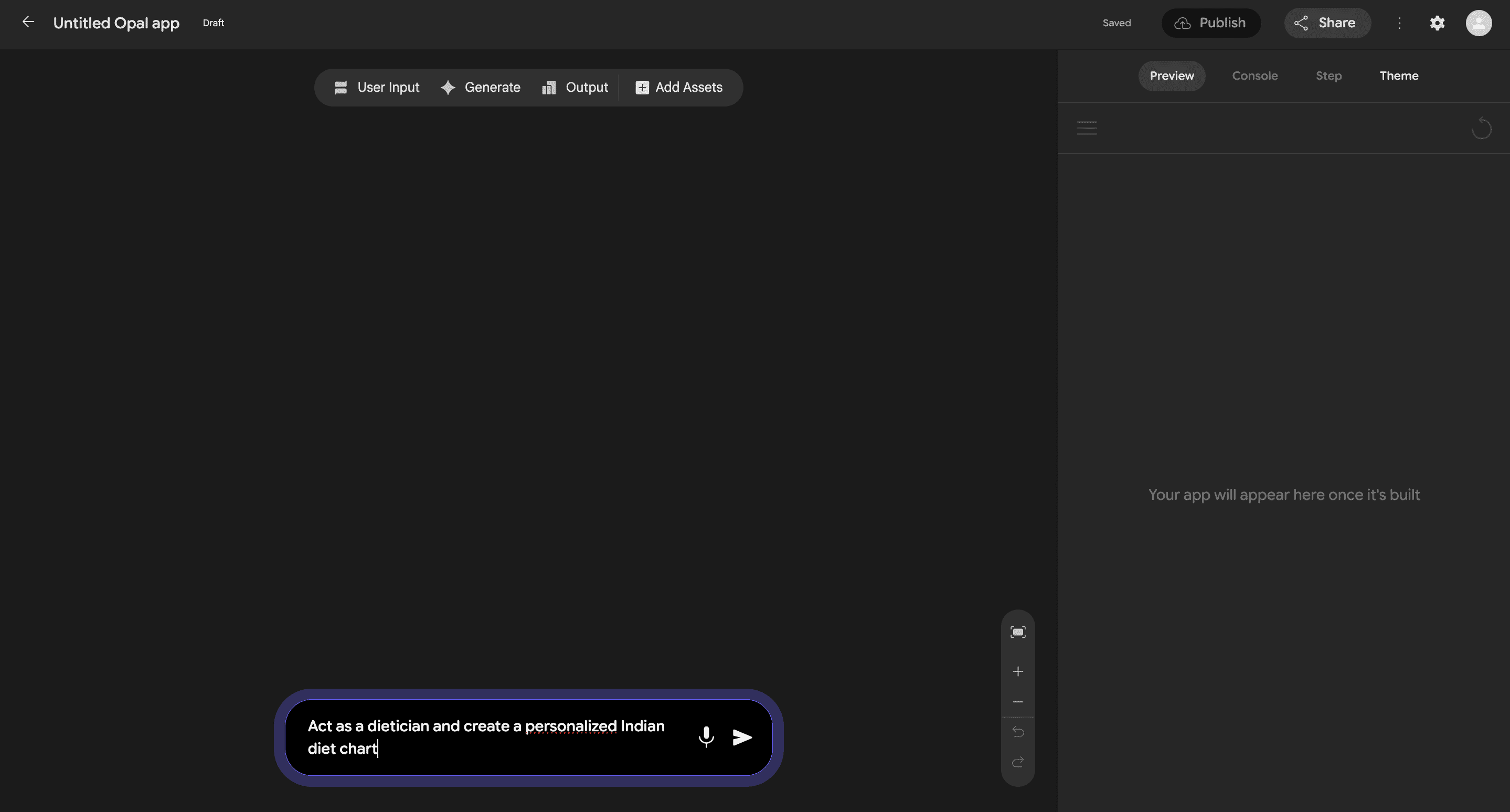
2. You’ll see Opal generate an entire workflow to build the app itself. Look at the image below.
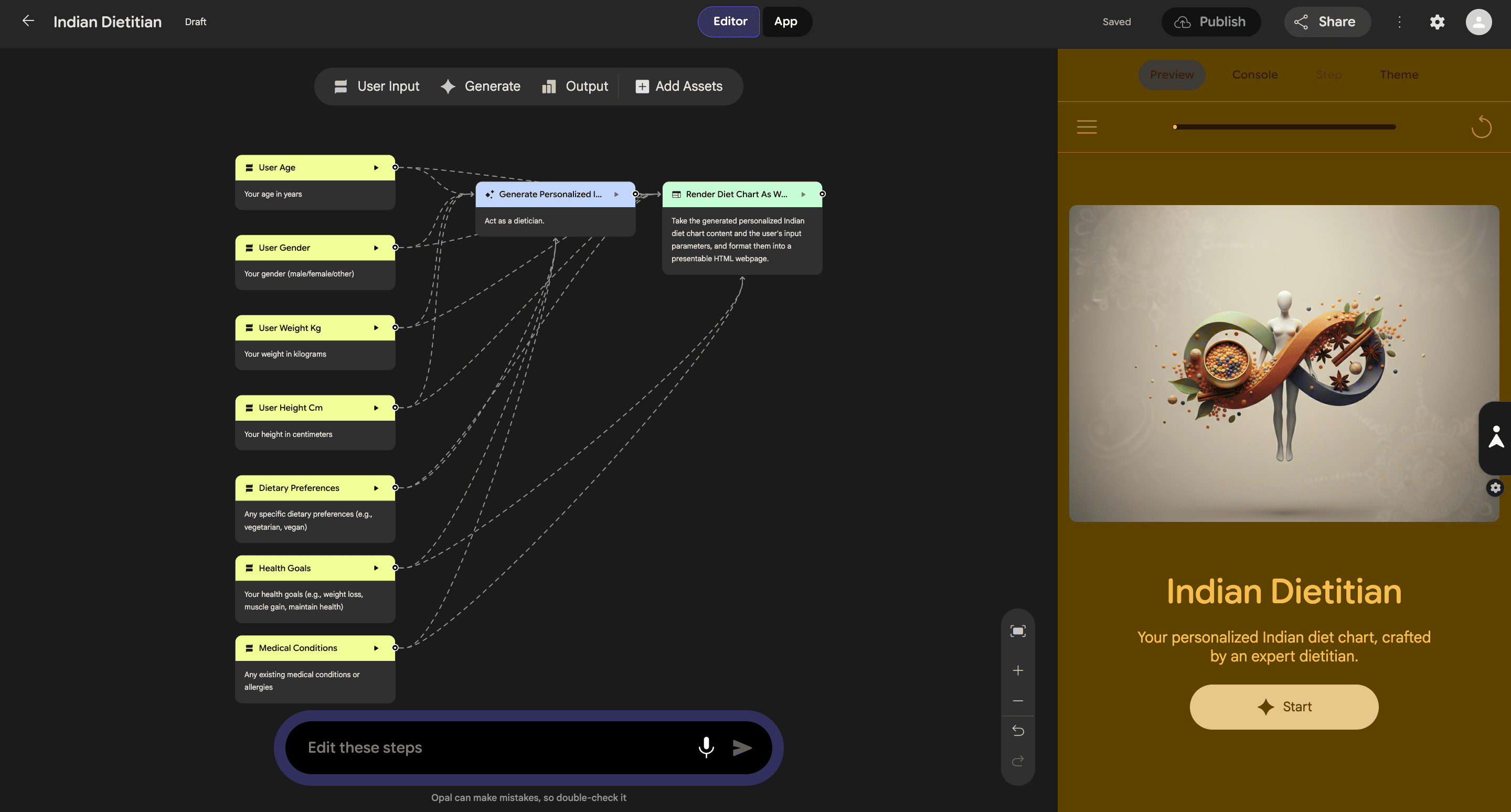
Opal has correctly understood the different user inputs it’ll need to create a usable diet chart. This includes user age, gender, weight, height, dietary preferences and medical conditions. Then the tool uses its AI layer to figure out a response. And finally, it displays the response in a chart format.
You should also be able to see a preview of the app under the preview tab on the right side of your screen. It’s great as is. But I want my app to scrape the web for a more accurate diet chart. So, here’s what I’ll do.
3. Click on the AI layer in the flow diagram in the Editor Tab.
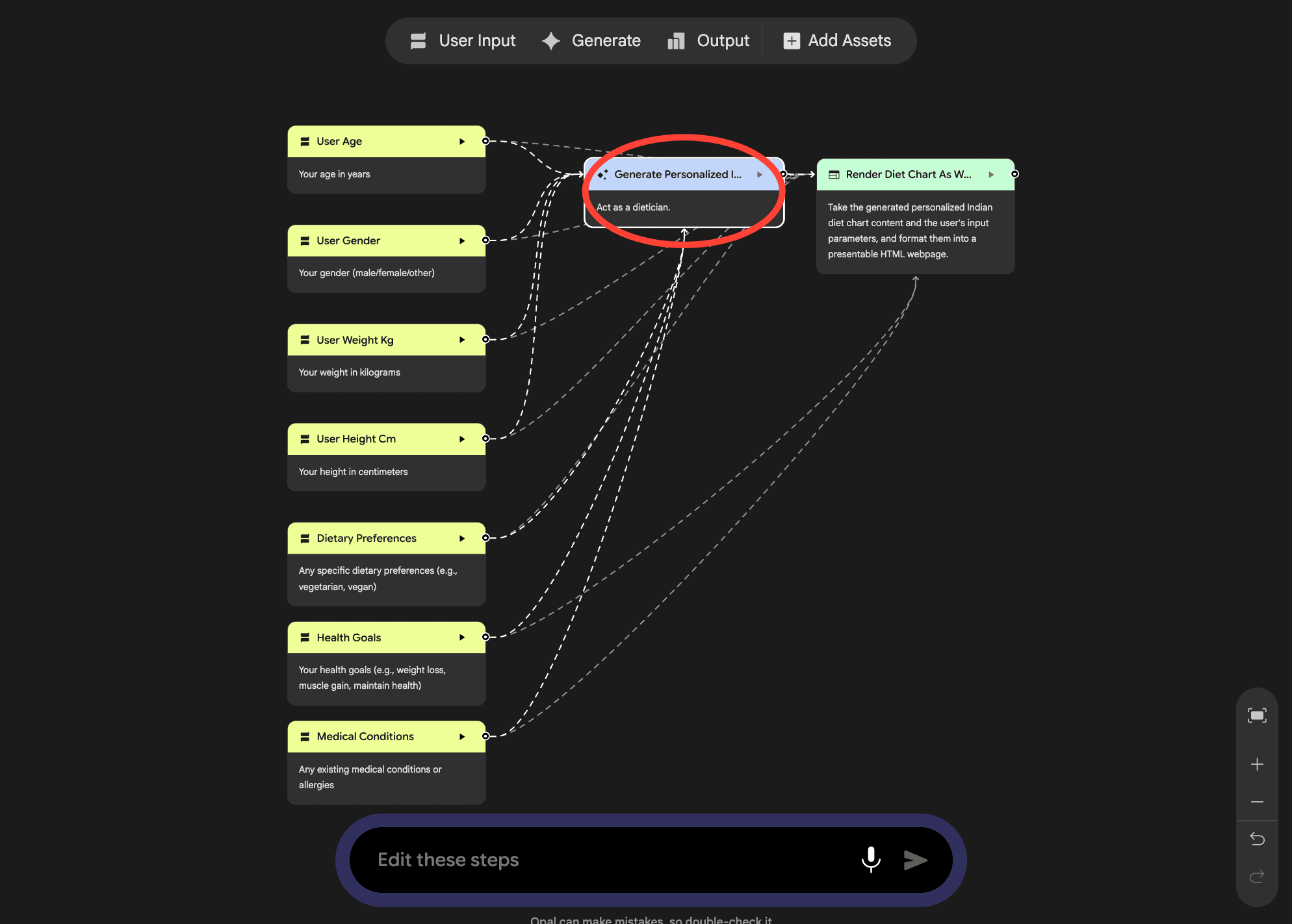
You should be able to click on the Step tab on your panel now.
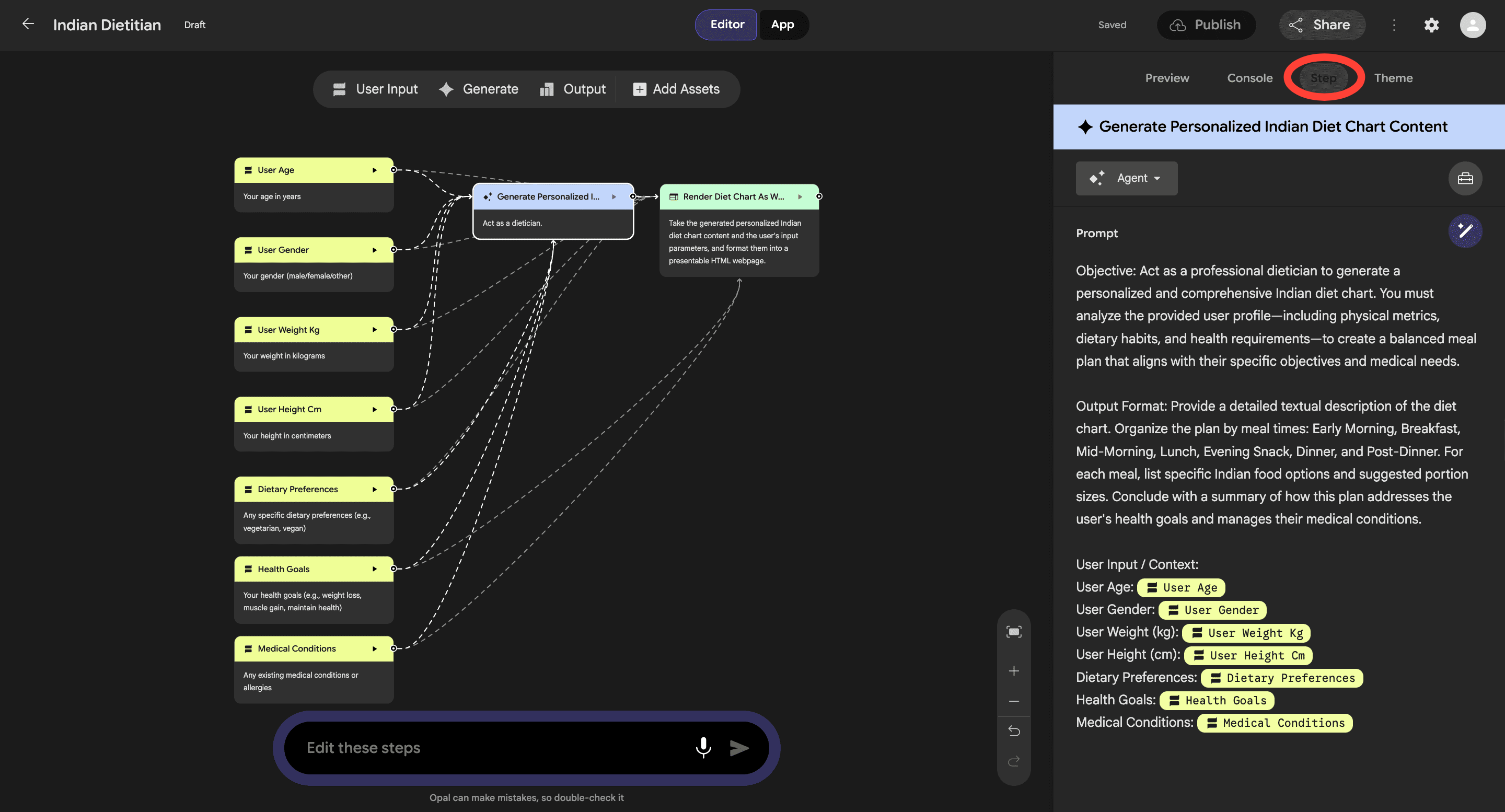
Here, you can fine-tune how your mini-App uses AI. You can choose your Agent under the Agent tab, and decide which Google function to use from the Toolkit. For this project, I want to use the Search web tool.
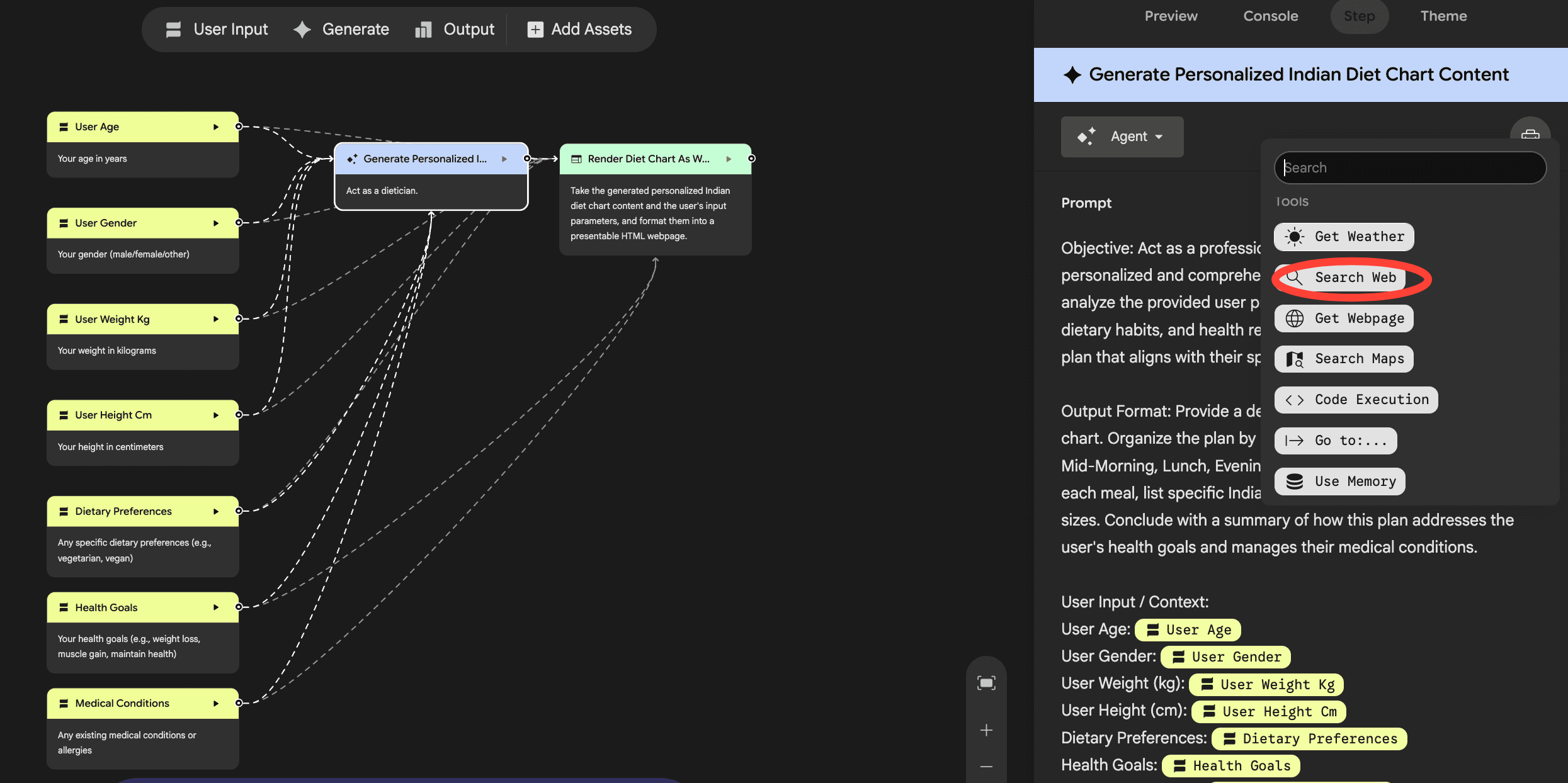
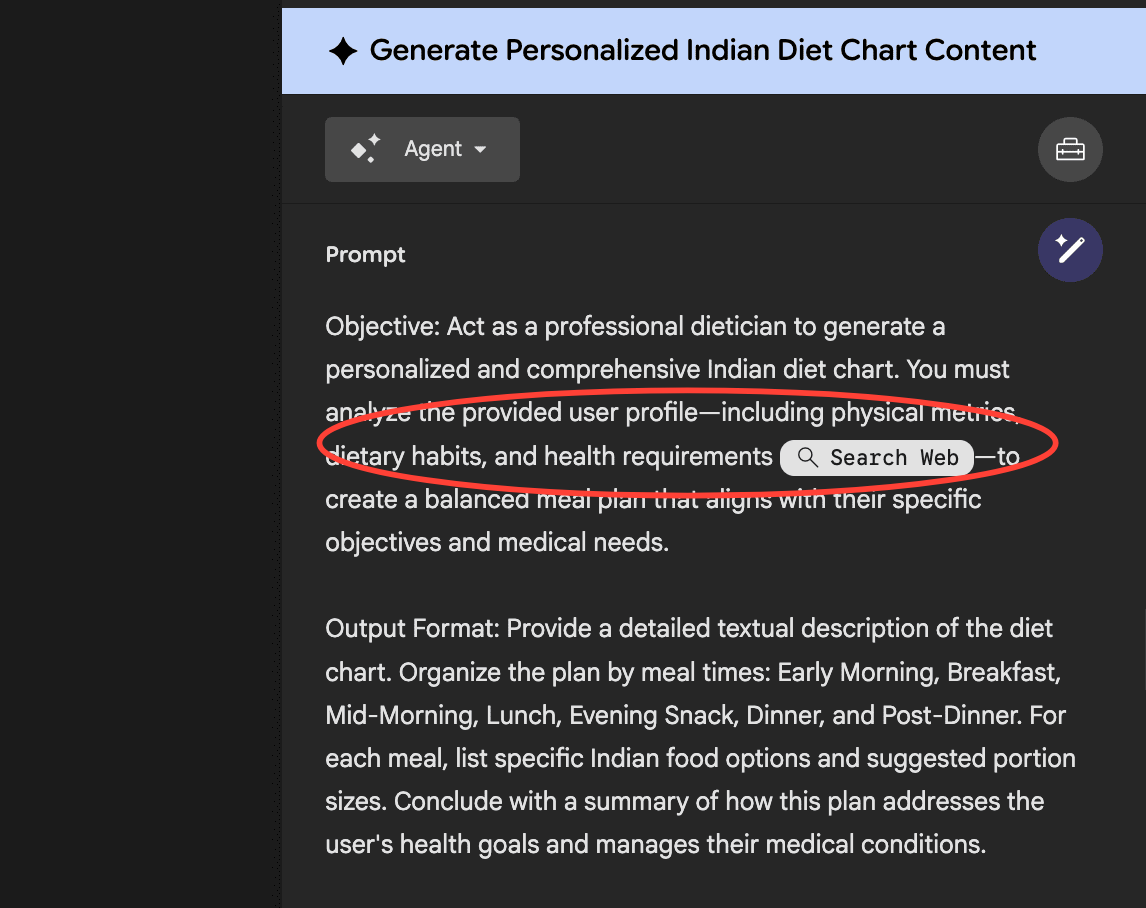
4. Now, look at your prompt. You can add the Search Web tool to the analysis section. Now, bring your cursor to the analysis section and add search web from the Toolkit dropdown.
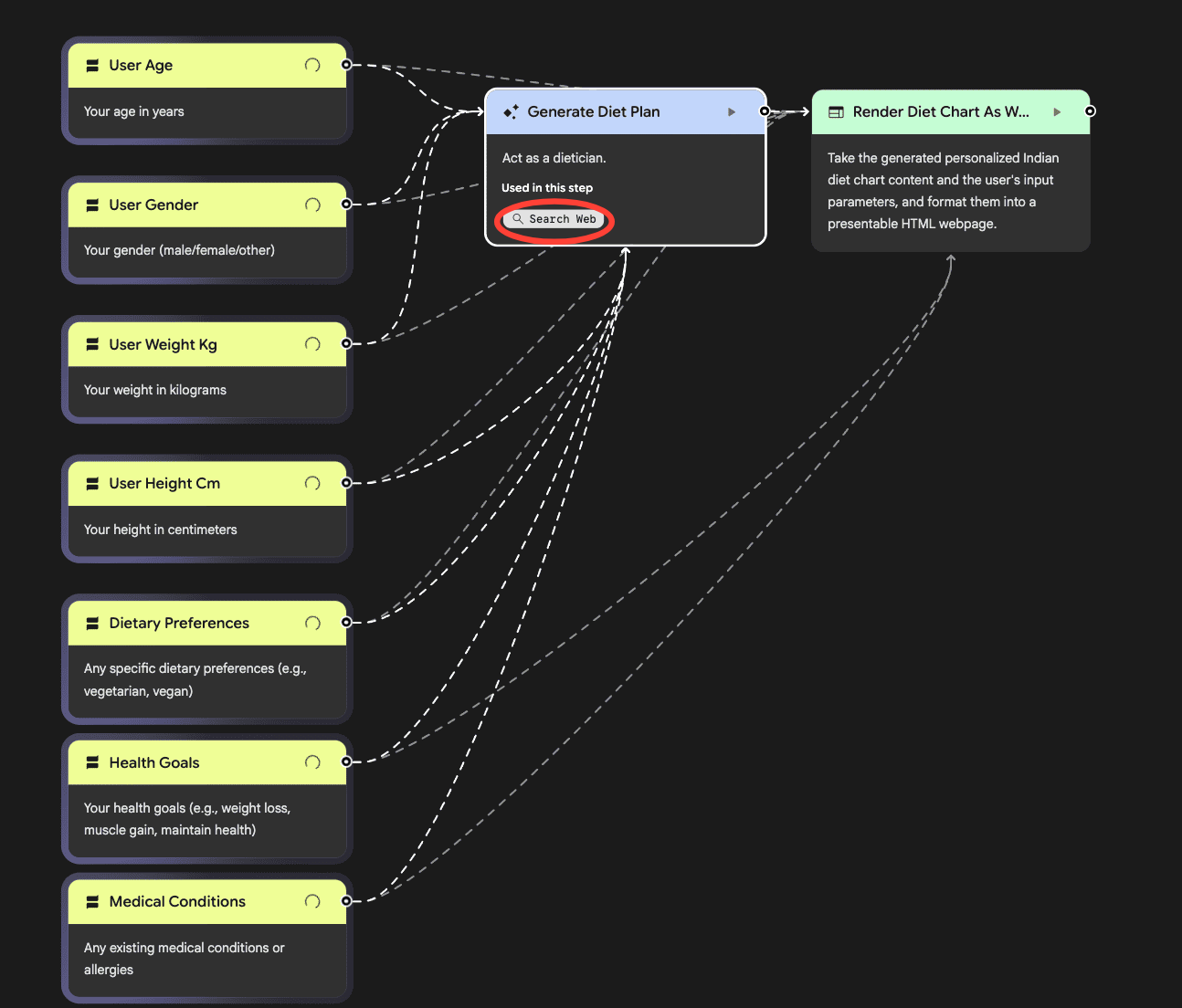
You should now see an updated workflow. Your app is ready!
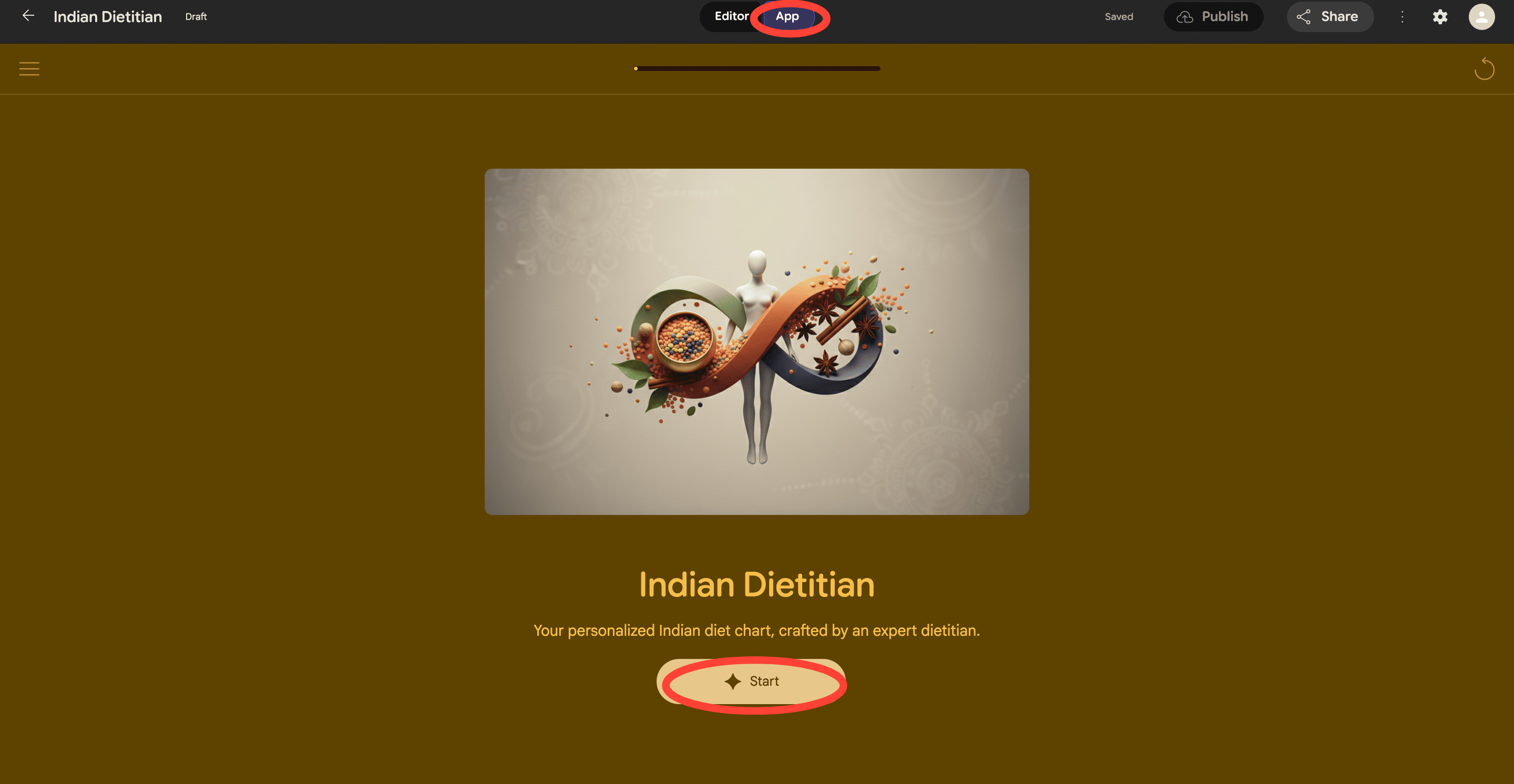
5. To experience your app, switch from the Editor tab to the App tab. And click on Start.
After you enter all the necessary details, you should get a chart that looks like this.
If you’ve never built an AI tool before, this is a good place to start. The tool is free, the workflow is straightforward, and you can use custom themes, upload custom assets, and use a fully functional Google-powered toolkit to build your app.
It’s really straightforward. Try it.